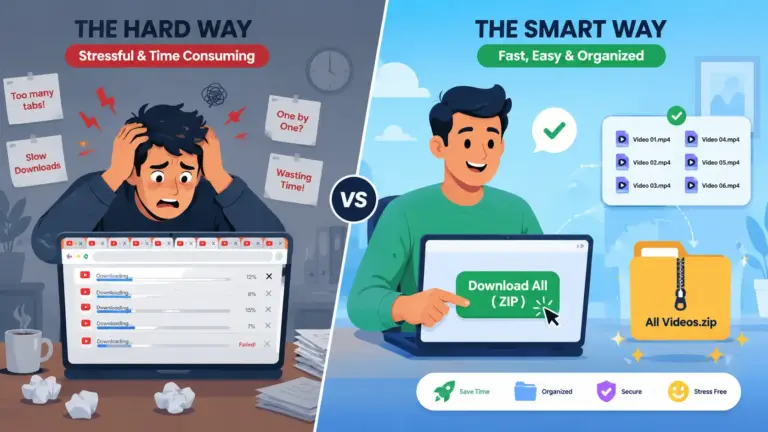
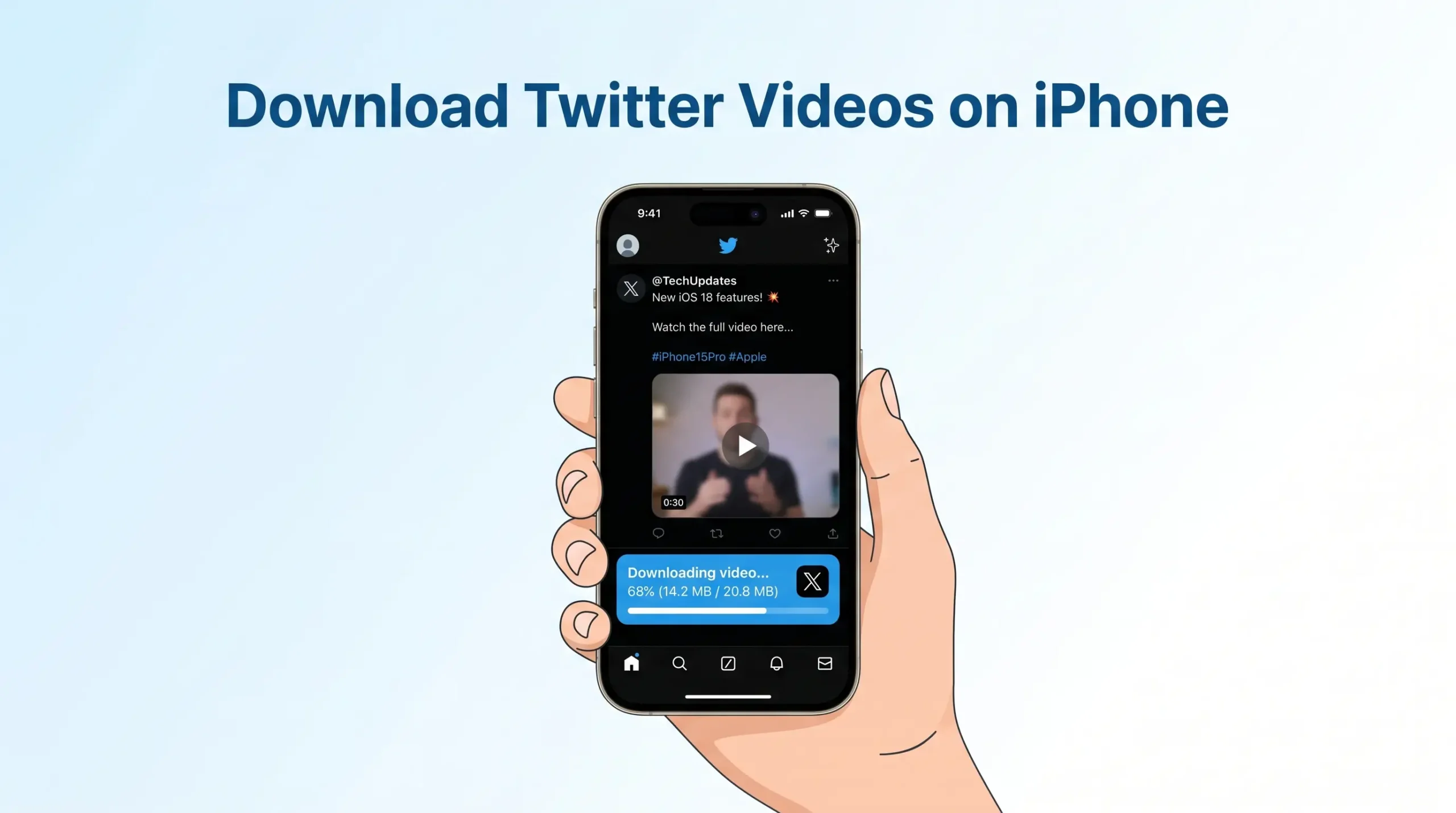
You just saw a hilarious video on Twitter. Or maybe it was a tutorial you wanted to save for later. You try to do something but there’s no “Save” button. Twitter just doesn’t give you one.
Sound familiar?
If you’re on an iPhone, downloading Twitter videos feels extra tricky. iPhones are great at many things, but saving videos from social media? Not so much, at least not without knowing the right trick.
Good news: it’s actually really easy once you know how. And in this guide, I’ll walk you through 4 working methods to download Twitter videos on your iPhone in 2026 without watermark. No jailbreak. No complicated apps. Just simple steps anyone can follow.
Are you Android user?: Then Try our Saving Twitter Videos Guide for Android
Can You Download Twitter Videos on iPhone?
Yes, but Twitter won’t help you do it.
Twitter (now called X) does not have a built-in download button for videos. You can bookmark tweets, but you can’t save the actual video file to your iPhone’s camera roll.
That’s why people use third-party tools. And the good news? Some of these tools are incredibly easy to use, even easier than you might expect.
Here’s what you’ll need for all the methods below:
- An iPhone running iOS 13 or newer (most methods work on iOS 15+)
- A web browser (Safari works great)
- The link to the tweet with the video you want
That’s it. No Twitter account needed. No passwords. Nothing complicated.
Method 1: Use TweeterDownloader.com (Easiest & Recommended)
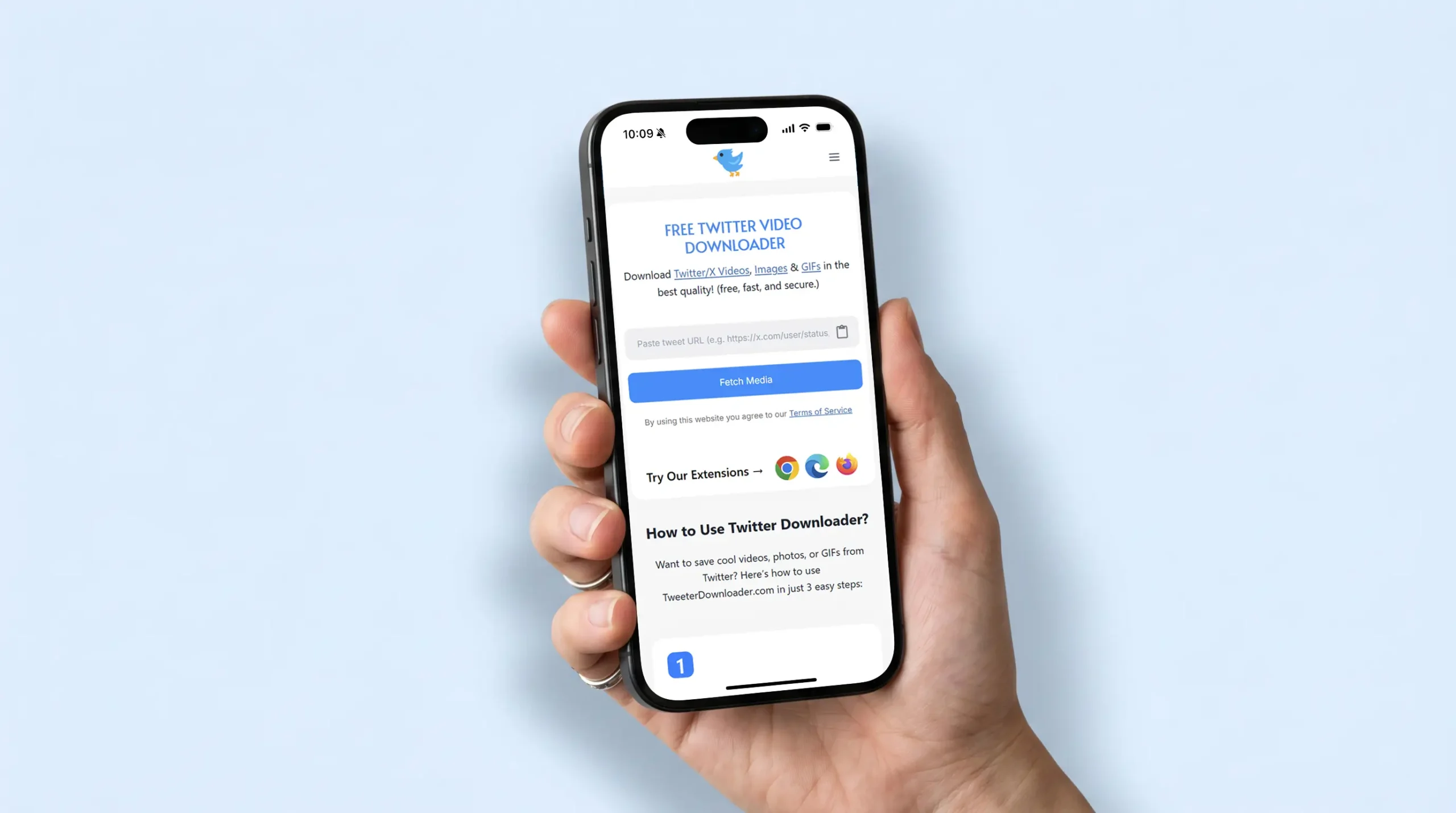
This is hands-down the simplest method. It works on every iPhone, takes less than 60 seconds, and you don’t need to install anything.
TweeterDownloader.com is a free online tool. You paste a tweet link, it finds the video, and you download it. Simple as that.
Here’s the step-by-step:
Step 1: Copy the Tweet Link
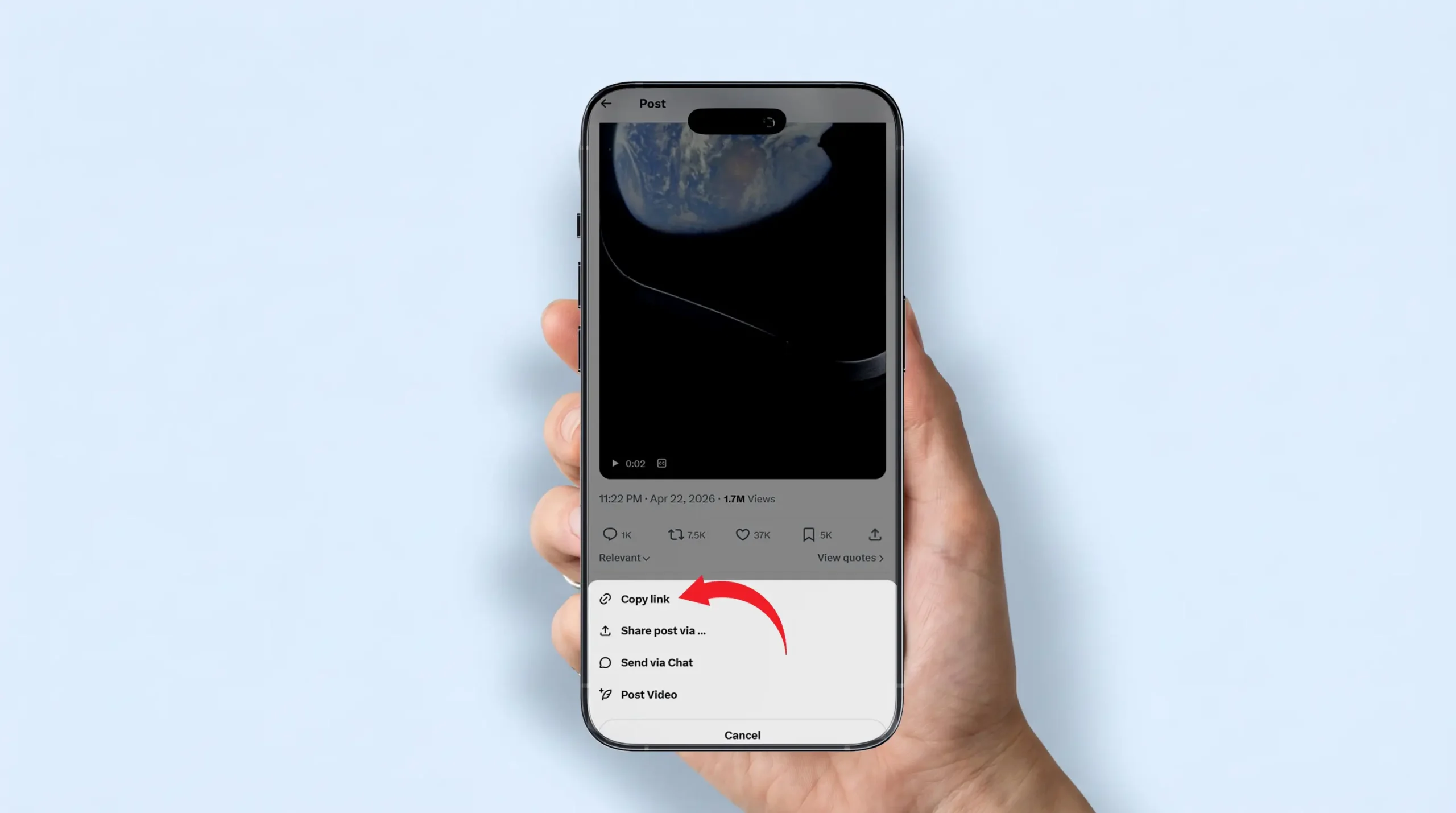
Open the Twitter app (or X app) on your iPhone.
Find the video you want to download.
Tap the Share button (the little arrow icon at the bottom of the tweet). Then tap “Copy Link”.
Tip: The link should look something like this:
https://x.com/username/status/1234567890
Step 2: Open TweeterDownloader.com in Safari
Open Safari on your iPhone and go to TweeterDownloader.com
You’ll see a simple input box in the middle of the page. That’s all you need.
Step 3: Paste the Link and Tap “Fetch Media”
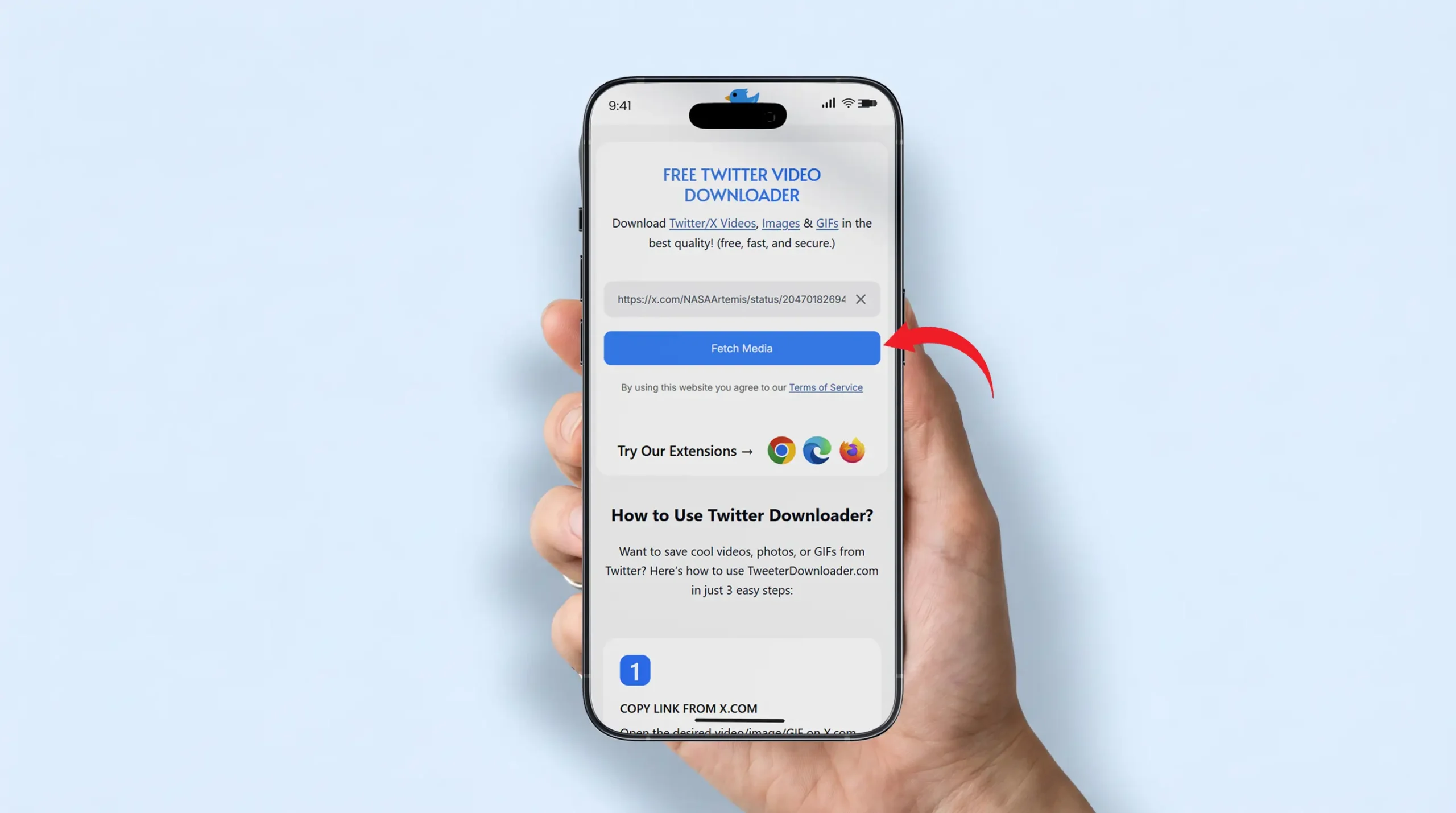
Tap the input box. Paste the tweet link you copied. Then tap the “Fetch Media” button.
Wait about 3–5 seconds. The tool will find the video.
Step 4: Choose Your Quality and Download
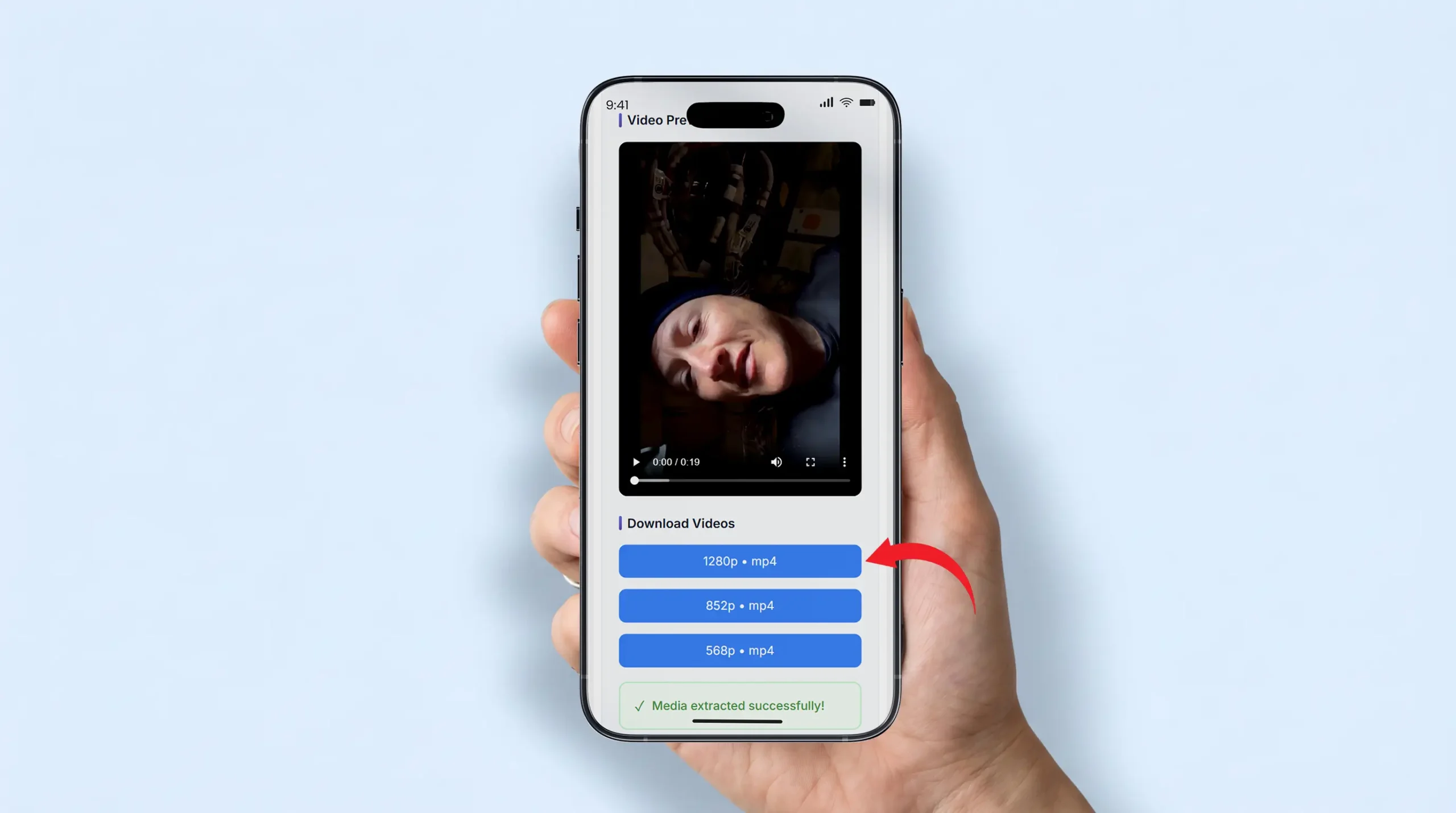
You’ll see the video appear with quality options usually 360p, 720p, 850p, 1080p, 1280p and 1440p.
Tap the quality you want. Then tap “Download Button”.
For iPhone users specifically:
- Safari will ask what to do with the file
- Tap “Download Button” (not “Open”)
- The video saves to your Files app → Downloads folder
Step 5: Move the Video to Your Camera Roll (Optional)
If you want the video in your Photos app instead of the Files app:
- Open the Files app
- Go to Downloads
- Tap and hold the video
- Tap “Share” → “Save Video”
Done! The video is now in your Camera Roll.
Method 2: The Safari “Download” Trick (No Extra Tools)
Some people don’t want to use any website. For them, Safari on iOS 15+ has a built-in download feature that can save videos directly.
However, this only works if you can get to the direct video URL, which Twitter makes hard. So this method is a bit technical but worth knowing.
How it Works:
- Copy the tweet link
- Go to TweeterDownloader.com and paste the link
- When the video appears, tap and hold the Download button
- Select “Download Linked File”
Safari will save it directly to your Files app → Downloads.
This is basically the same as Method 1, but you’re using Safari’s native download feature instead of the website’s download button.
Why does this matter? Some older iPhones have trouble with the normal download button. This trick bypasses that.
Method 3: Use the Documents App by Readdle
This method is great for older iPhones running iOS 12 or earlier, where Safari’s download manager doesn’t work.
Documents is a free app from the App Store made by a company called Readdle. It has its own built-in browser, and that browser can download video files directly.
Steps:
1. Download Documents by Readdle from the App Store (it’s free).
2. Open Documents. Tap the browser icon at the bottom right (it looks like a compass).
3. In the browser, go to TweeterDownloader.com.
4. Paste your tweet link and tap “Fetch Media”.
5. When the video appears, tap Download. The video saves inside the Documents app.
6. To move it to your Camera Roll:
- Find the video in Documents
- Tap the three dots (⋯) next to it
- Tap “Share” → “Save Video”
Method 4: Screen Record (Last Resort)
Let me be honest with you: Screen recording is the worst option. The video quality is lower, you’ll capture everything on your screen (including the tweet text and UI), and the file size is huge.
But sometimes, like if a video is not loading on the downloader tool, or it’s a live stream — screen recording is the only way.
How to Screen Record on iPhone:
1. Add Screen Recording to your Control Center (if you haven’t already):
- Go to Settings → Control Center → Customize Controls
- Add Screen Recording
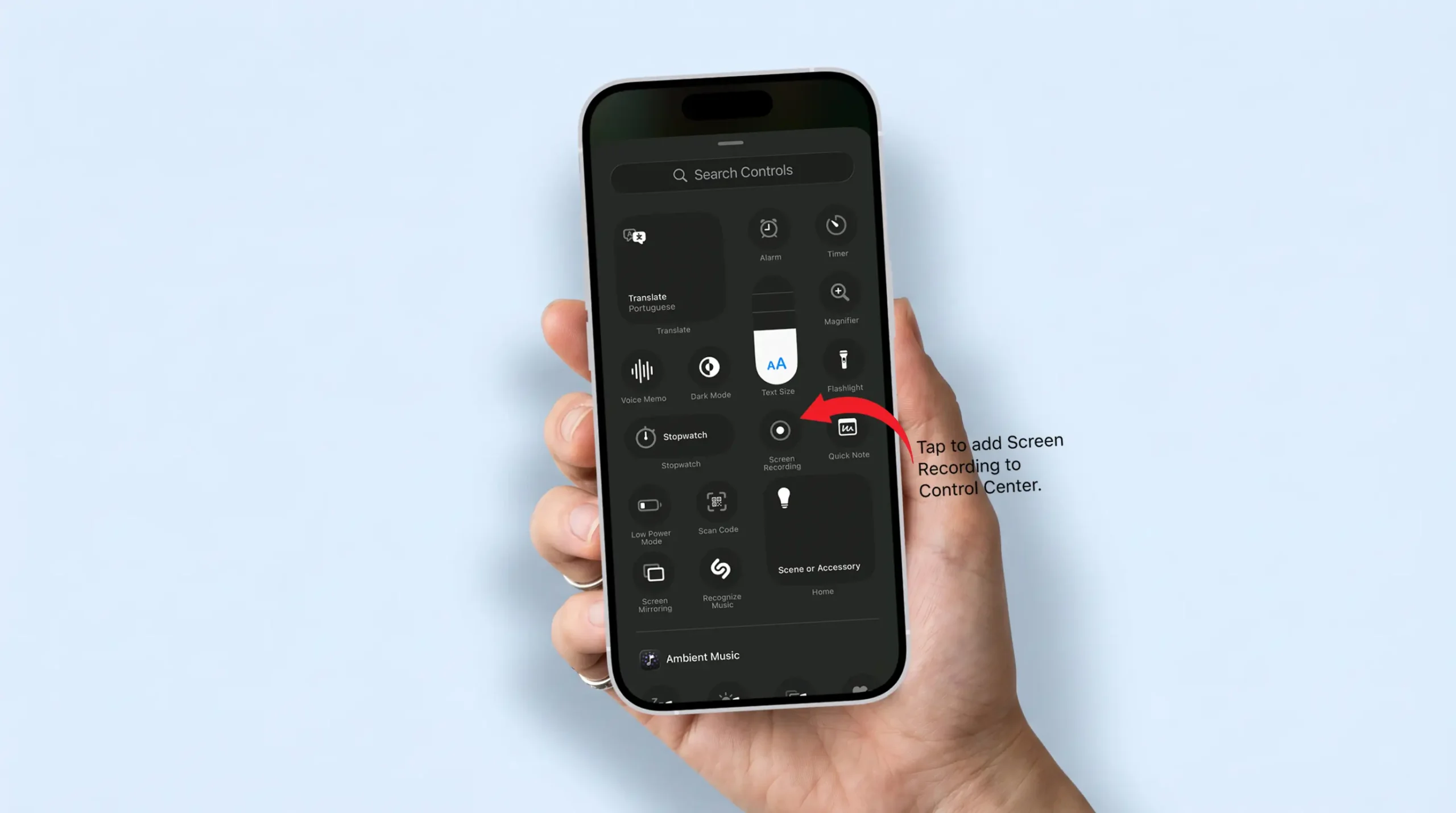
2. Open the tweet with the video you want.
3. Swipe down from the top-right corner of your screen to open Control Center.
4. Tap the Record button (circle with a dot).
5. Wait 3 seconds for the countdown, then play the video.
6. When done, tap the red bar at the top → “Stop”.
The recording saves to your Camera Roll automatically.
Quick Tip: Turn on Do Not Disturb before recording so no notifications pop up in the video.
Which Method Should You Use?
Here’s a quick comparison to help you decide:
| Method | Difficulty | Video Quality | Saves to Camera Roll | Free? |
|---|---|---|---|---|
| TweeterDownloader (Method 1) | ⭐ Very Easy | ✅ HD (1080p) | After one extra step | ✅ Yes |
| Safari Download Trick (Method 2) | ⭐⭐ Easy | ✅ HD | Files app only | ✅ Yes |
| Documents App (Method 3) | ⭐⭐ Easy | ✅ HD | After one extra step | ✅ Yes |
| Screen Record (Method 4) | ⭐ Very Easy | ❌ Lower quality | ✅ Automatic | ✅ Yes |
Our Recommendation: Use Method 1 (TweeterDownloader). It’s the fastest, gives you the best quality, and works on every iPhone model without installing any app.
Where Do Downloaded Videos Go on iPhone?
This confuses a lot of people — so let’s clear it up.
When you download a video using Safari on iPhone, it does not go directly to your Camera Roll like it would on Android. Instead, it saves to the Files app.
Here’s where to find it:
Files App → On My iPhone → Downloads
Or:
Files App → Browse → Downloads
Once you’re there, you can watch the video, share it, or save it to your Photos app.
To move it to Camera Roll:
- Open Files app
- Find your downloaded video
- Tap and hold → Share → Save Video
Now it’s in your Camera Roll permanently. Easy!
Can You Download Twitter Images and GIFs on iPhone Too?
Yes! If the tweet contains a photo or GIF instead of a video, TweeterDownloader handles those too.
- For images: Use our Twitter Image Downloader — paste the same tweet link and download the photo in original quality.
- For GIFs: Use our Twitter GIF Downloader — works the same way, saves GIFs as MP4 files (which play automatically like GIFs on any device).
The process is exactly the same as downloading a video — copy the link, paste it, download.
Frequently Asked Questions
Twitter (X) doesn’t provide a built-in download button for videos. This is a platform decision, not an iPhone limitation. That’s why third-party tools like TweeterDownloader exist. They fill the gap Twitter leaves open.
Yes, completely. TweeterDownloader does not ask for your Apple ID, Twitter login, or any personal information. You just paste a link. The tool processes it and gives you the file. No data is stored. No passwords needed.
Yes! As long as your iPhone can run a modern browser like Safari, TweeterDownloader works. It’s a website — not an app — so there’s no compatibility issue with older devices. Even iPhone 6S with iOS 15 can use it.
This is normal for iPhone. Safari saves downloads to the Files app by default. To move it to your Camera Roll, open the Files app, find the video in Downloads, tap and hold, then tap Share → Save Video. It will appear in your Camera Roll immediately.
No, and this applies to every downloader tool out there. Private account videos are protected and cannot be accessed without logging in. TweeterDownloader can only download videos from public tweets that anyone can view.
Try these fixes in order:
1. Make sure the tweet link is correct (it should contain “status” and a number)
2. Check that the account is public
3. Try a different browser (Firefox or Chrome on iPhone)
4. Clear your Safari cache and try again
5. Wait a minute and retry — sometimes servers get busy
Yes! TweeterDownloader gives you the same quality options Twitter stores — usually up to 1080p HD. Choose the highest quality option for the best result. The only exception is if the original uploader posted a lower-quality video.
Downloading for personal use is generally fine in most countries. However, it’s important to respect the creator’s rights. Don’t repost downloaded videos as your own, don’t sell them, and always give credit if you share. When in doubt, ask the original creator for permission.
For more on this, you can read Twitter’s Terms of Service directly.
Final Thoughts
Saving Twitter videos on iPhone used to feel like solving a puzzle. But as you’ve seen, it’s actually pretty straightforward once you know the right tool.
The fastest route? Copy the tweet link → Go to TweeterDownloader.com → Paste and download. Done in under a minute.
Bookmark this page so you can come back to it anytime. And if you found this guide helpful, share it with a friend who’s been struggling with the same problem!