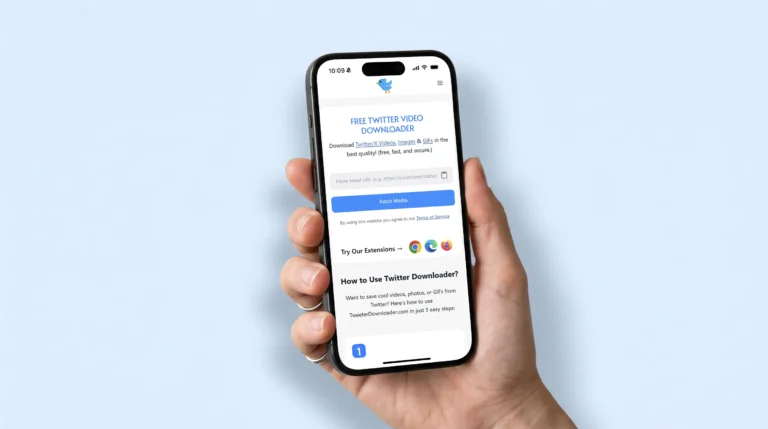
Twitter is full of clips worth keeping just for the sound. A podcast moment someone clipped, a funny voice note, a music snippet, a short interview. The video part is nice, but sometimes all you actually want is the audio, something you can play in the background without staring at your screen.
You don’t need to install anything to do this. Whether you’re on an iPhone or an Android phone, the steps are almost identical. The one real difference shows up after the file downloads, since the two phones handle audio files a little differently. This guide covers both, plus what to do if something doesn’t work the first time.
Try our: Twitter (X) GIF Downloader Tool
Why People Convert Twitter Videos to MP3?
A few common reasons this comes up:
- Saving a podcast clip or interview so it plays like a normal audio file
- Turning a voice tweet or reaction clip into something you can replay later
- Keeping a music snippet without a full video file eating up storage
- Listening to something during a commute without needing to watch the screen
Whatever the reason, the process is the same on both platforms. You just need the tweet link and a converter tool.
What You’ll Need
Nothing complicated:
- The link to the tweet with the video
- A browser (Safari, Chrome, or anything else)
- A free tool like our Twitter to MP3 Converter that extracts the audio and hands you back an MP3
No app to download, no account to create, no software to keep updated.
How to Convert Twitter Video to MP3 on iPhone
1. Open the X app or Safari and find the video you want.
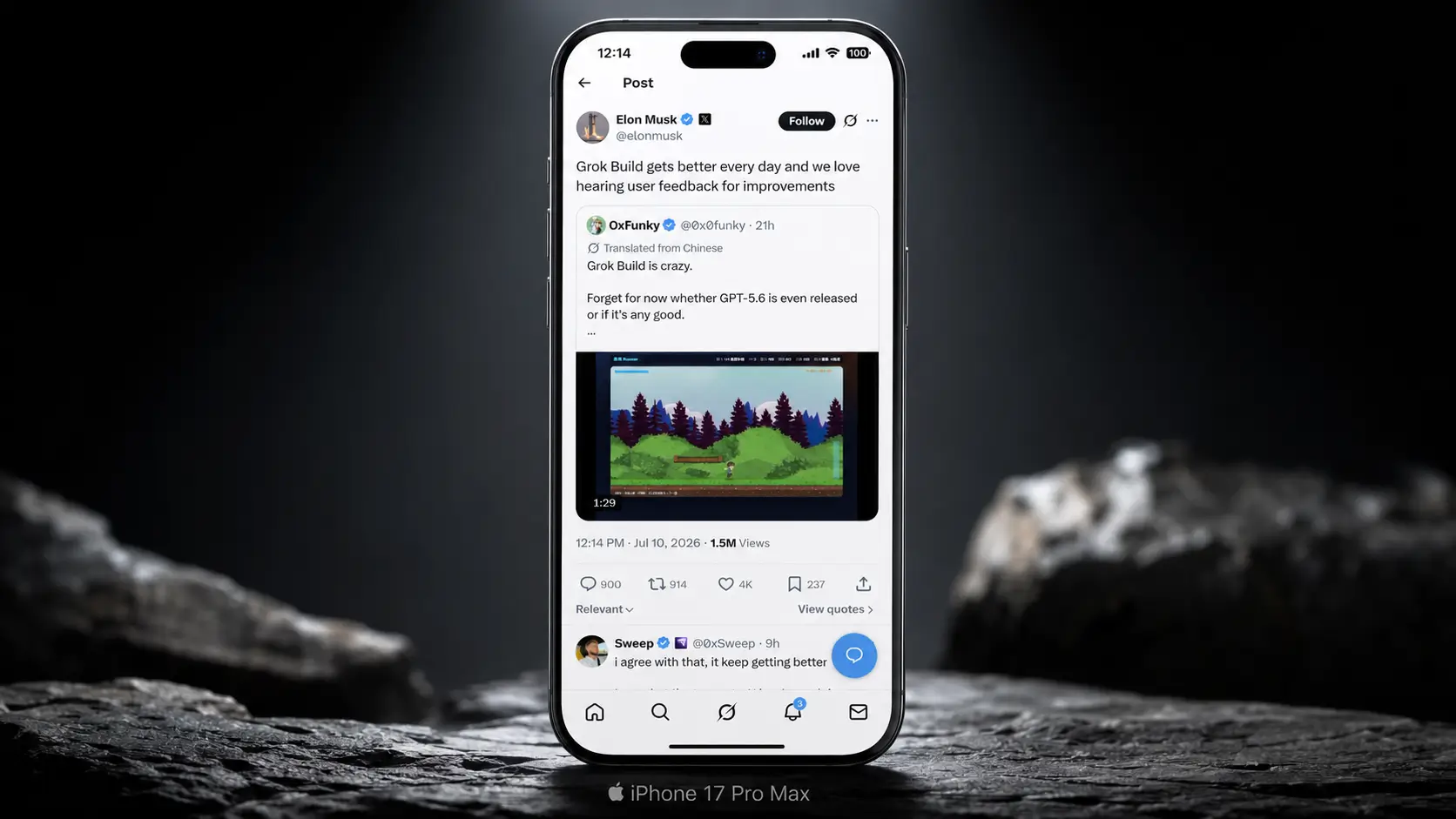
2. Tap the Share icon under the tweet.
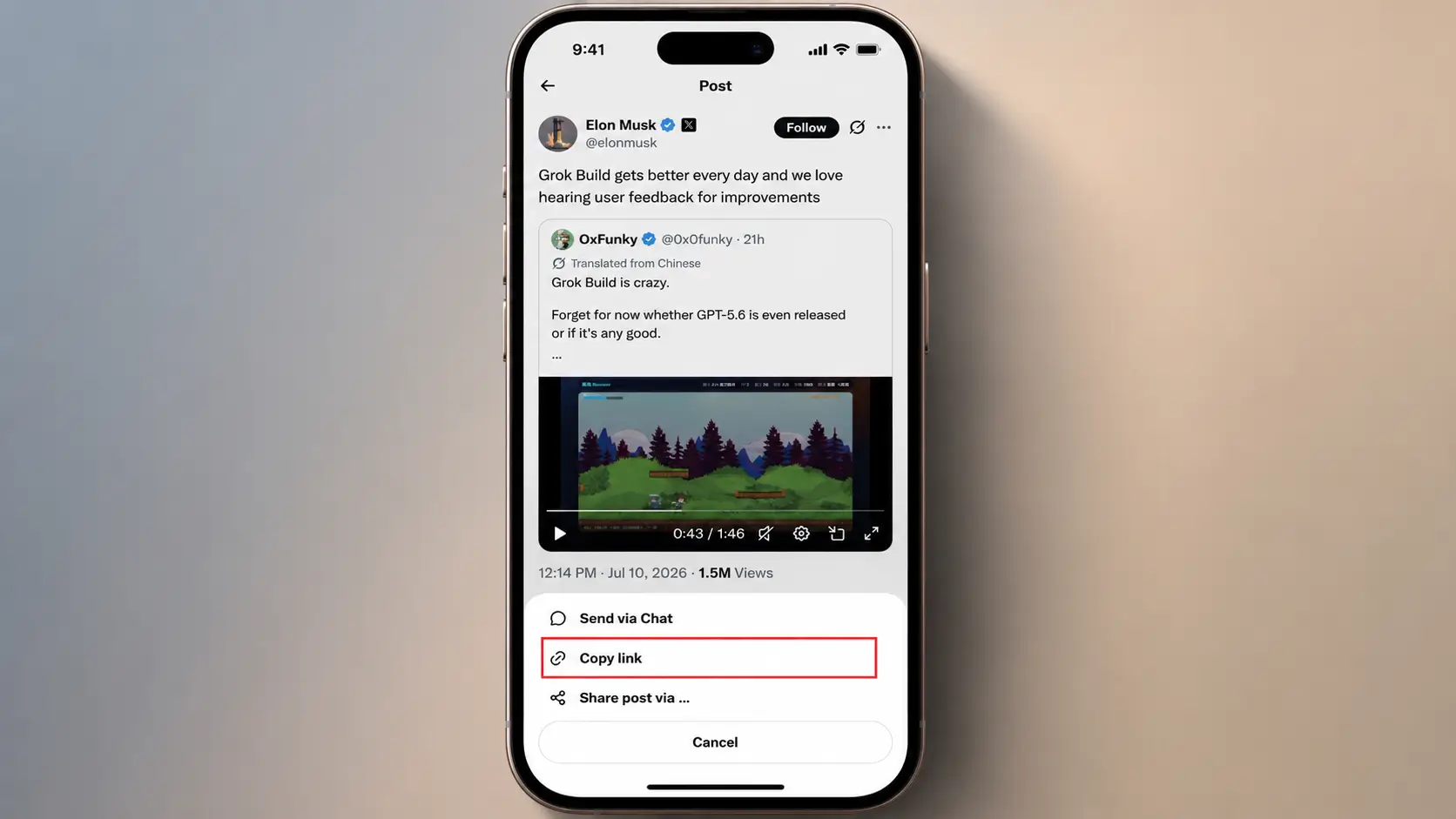
3. Select Copy Link.
Open our Twitter to MP3 Converter in Safari.
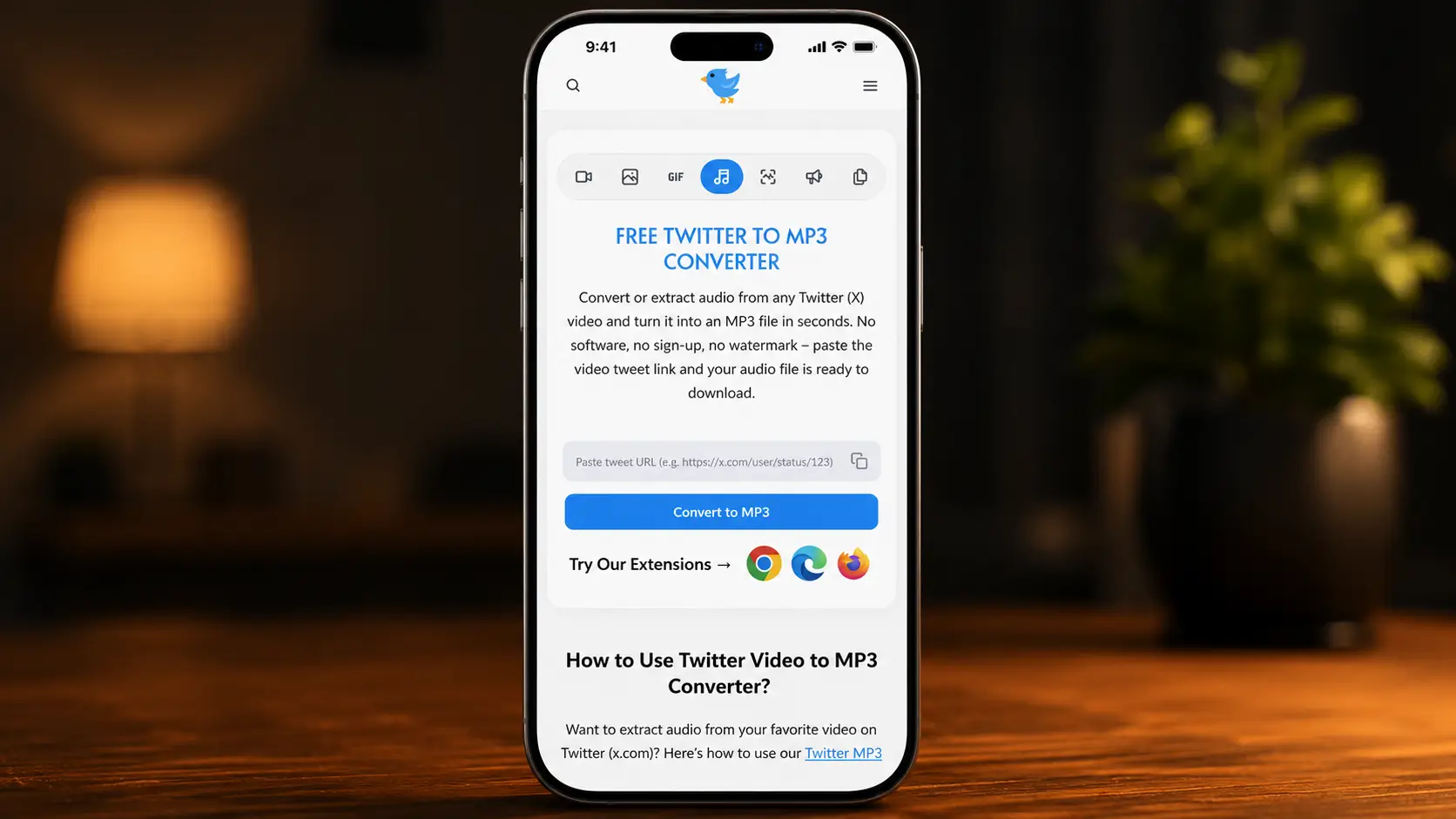
Paste the link into the box and tap “Convert to MP3” button.
Tap Download once the MP3 is ready.
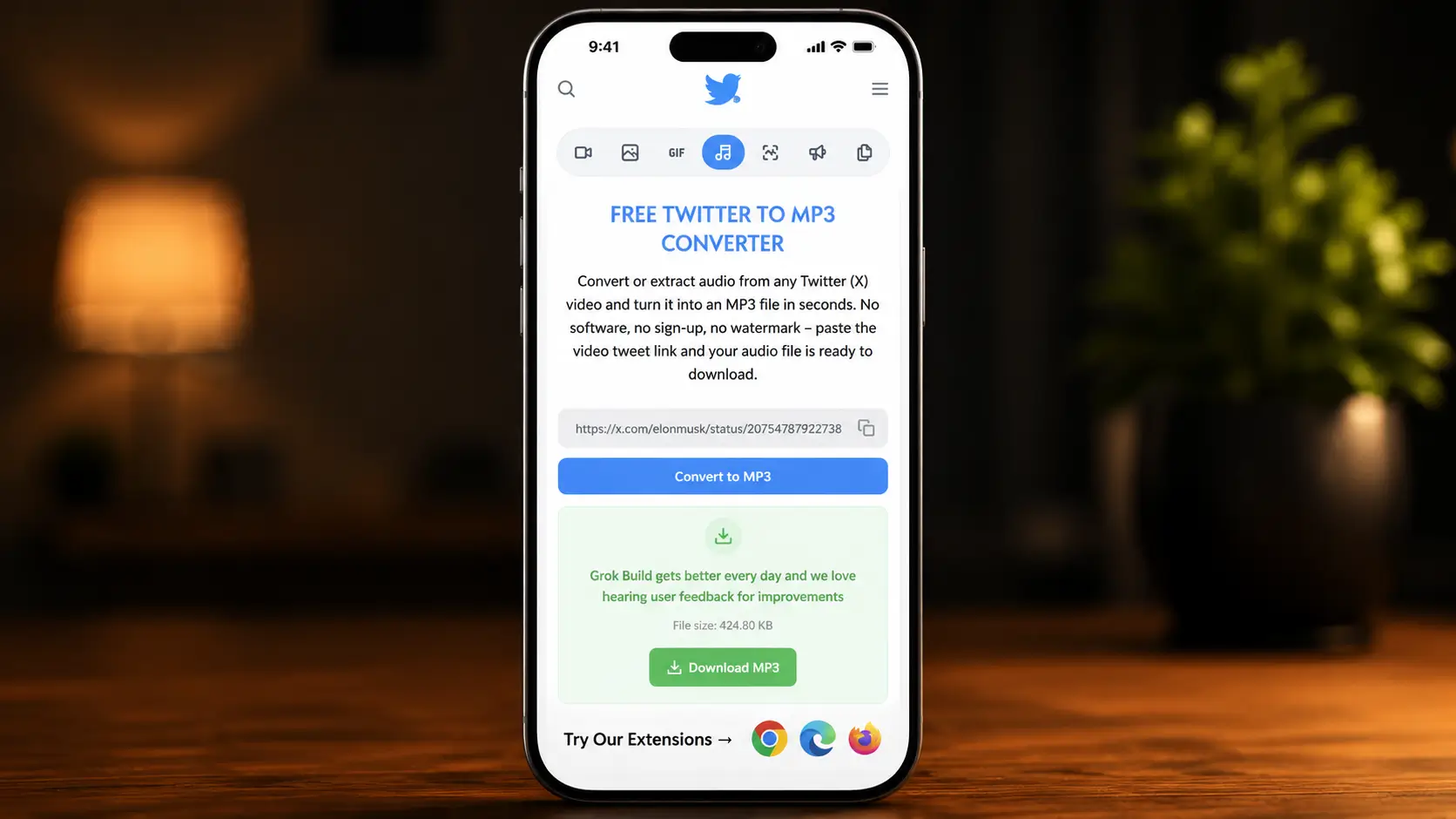
Here’s the part most guides skip. On iPhone, the file doesn’t land in your Music app. It goes into the Files app instead, usually under On My iPhone > Downloads. To play it right away, open Files, tap Browse, find the file, and tap it. It plays directly from there, no extra app needed.
If you want the MP3 sitting inside your actual Music app for offline playback, that needs a transfer through a computer using Finder or a similar tool. For just listening on the spot, playing it from Files works perfectly fine.
How to Convert Twitter Video to MP3 on Android
Android makes this part a little simpler.
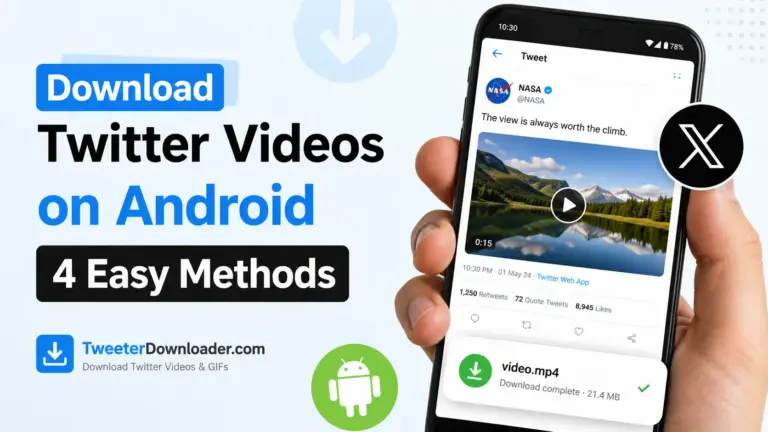
1. Open the X app or use Chrome browser to open x.com and find the video.
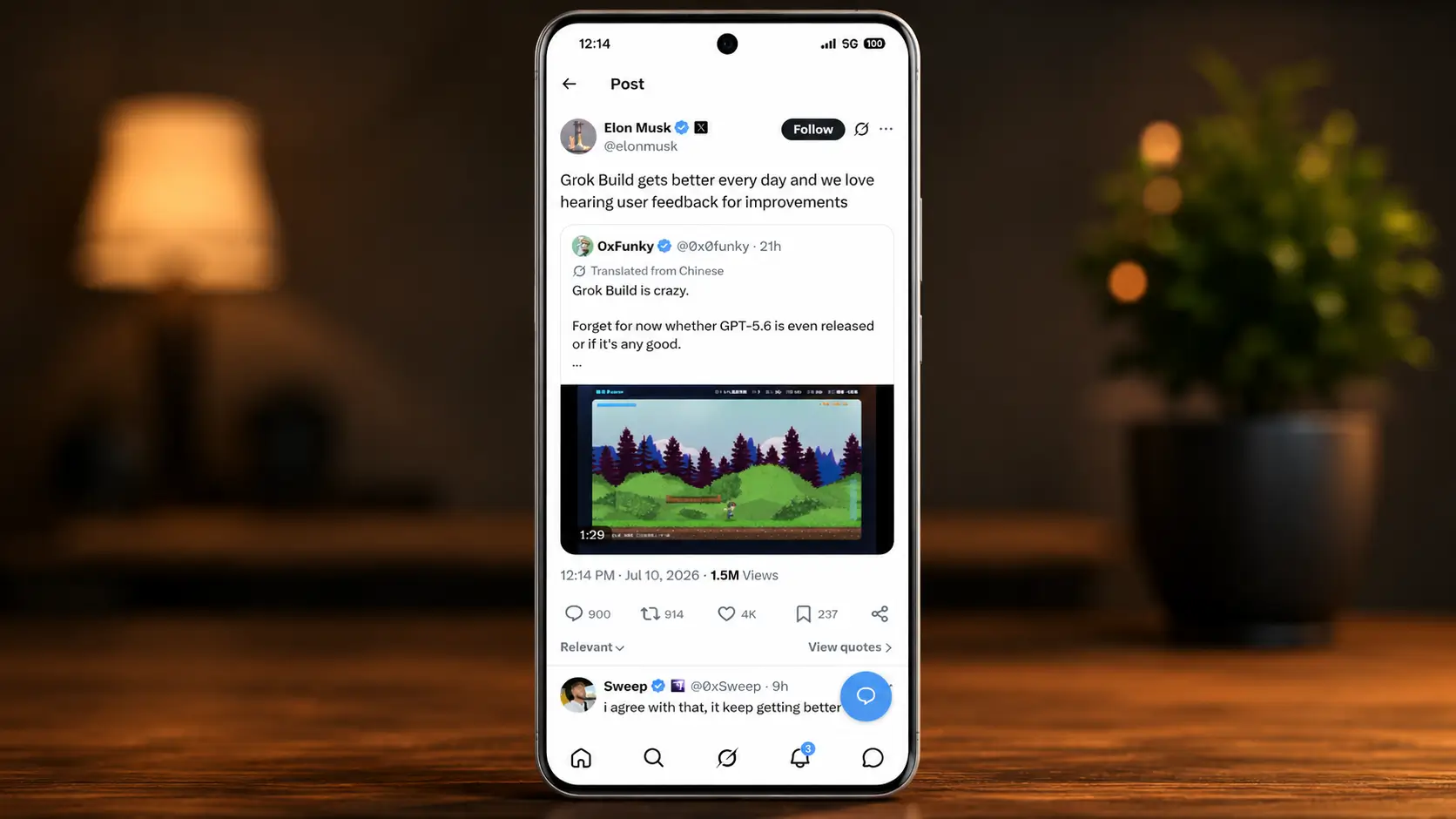
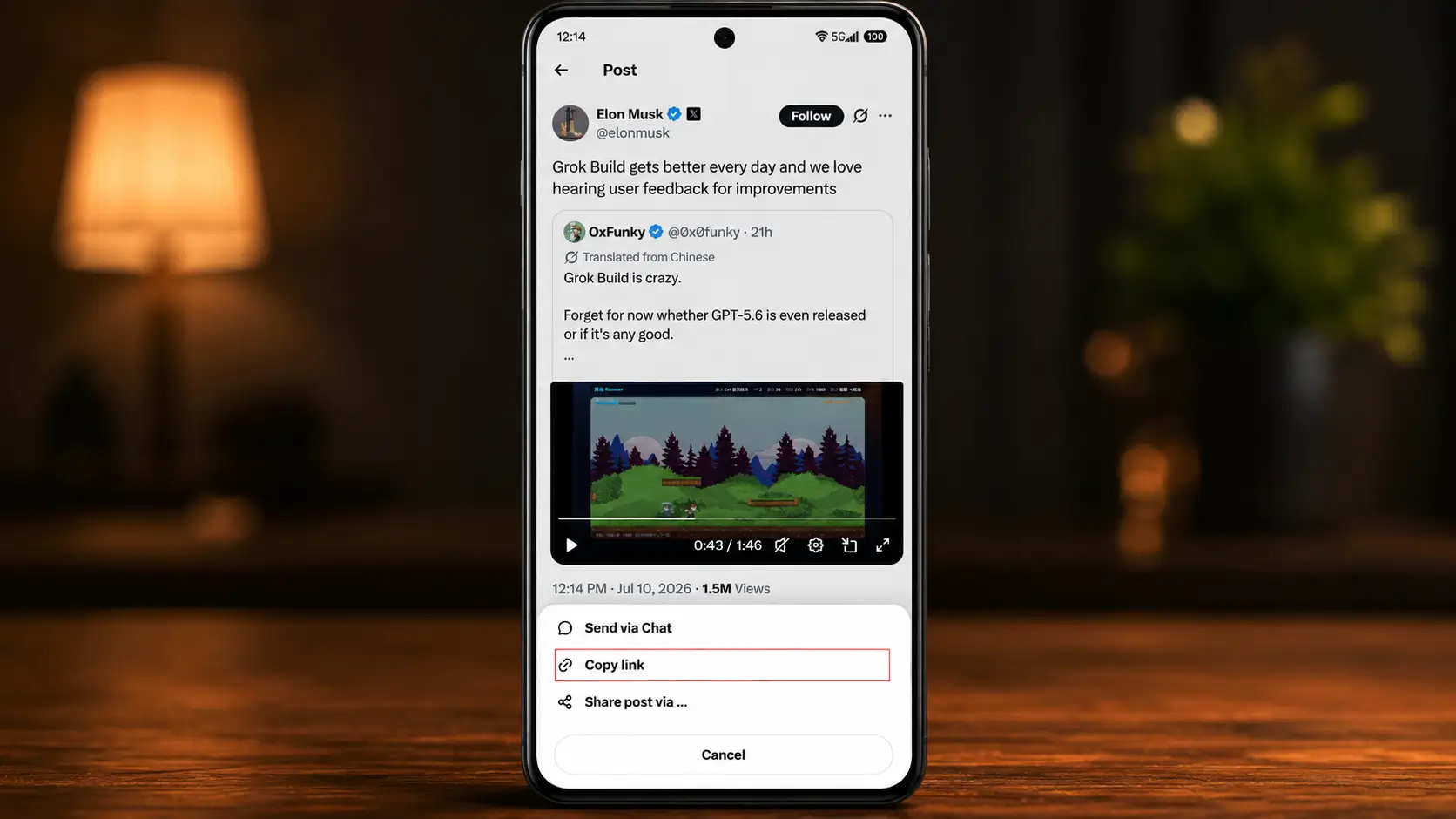
2. Tap the Share icon and select Copy Link.
3. Open our Twitter to MP3 Converter in Chrome.
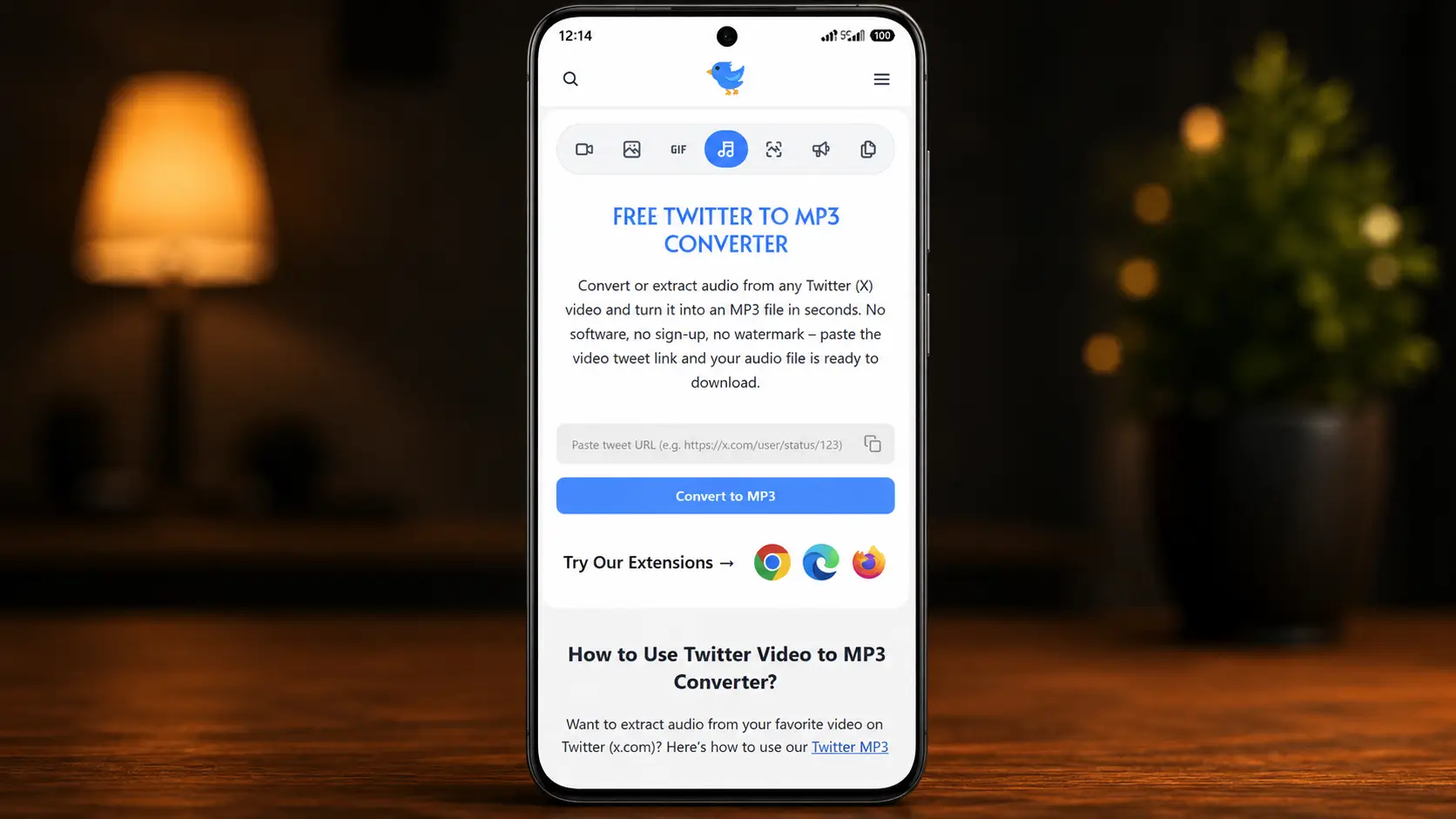
4. Paste the link and tap “Convert to MP3″ button.
5. Tap Download.
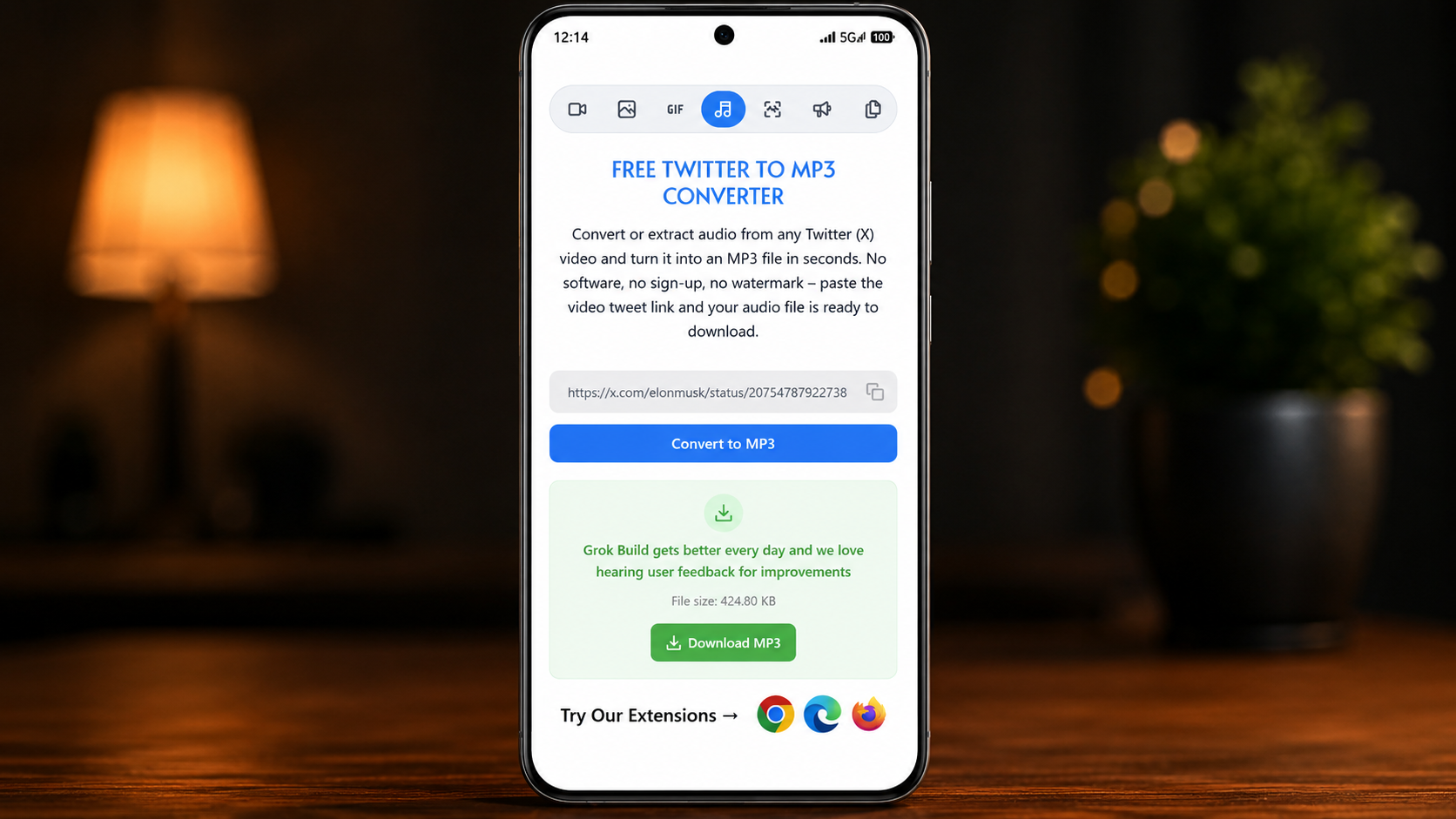
Chrome saves the file straight to your Downloads folder. From there, almost any music player app or file manager on Android can find and play it right away, no transfer step needed. If you use Files by Google or a similar app, you can also move the MP3 into a proper Music folder to keep things tidy.
What to Do If Something Goes Wrong
“No audio found” message: This usually means one of three things: the tweet was deleted, the account went private after you copied the link, or the video genuinely has no sound track. Some Twitter videos, especially memes turned into short clips, are uploaded silent on purpose.
The link won’t paste or convert: Make sure the link was copied directly from the Share button on the tweet itself, not from a browser address bar or a shortened redirect link. A partial link usually won’t work.
The MP3 downloaded but won’t play: On iPhone, check the Files app first, not Music, since that’s where it actually lands. On Android, check your Downloads folder if your file manager didn’t pop up automatically after the download finished.
The tweet is from a private account: This won’t work for private accounts. The tweet has to be public for any converter tool, including ours, to reach the video.
Quick Questions
- Do I need an app to do this?
No. Everything happens in your phone’s browser. No app, no install, no account.
- Does this work with x.com links too?
Yes. Twitter and X links work exactly the same way in the converter.
- Can I convert a Twitter Spaces recording this way?
Not with this tool. Spaces recordings work differently from regular tweet videos, so they need a separate method. This guide is specifically for videos posted in tweets.
- Will the audio quality be lower than the original?
No. The tool pulls the audio track as it is, without extra compression.
Wrapping Up:
Converting a Twitter video to MP3 takes under a minute on either phone. iPhone just adds one extra step since the file lands in Files instead of Music. Android skips that step entirely and plays it almost right away.
If you haven’t tried it yet, head over to our Twitter to MP3 Converter and paste in a link. No sign-up, no software, and it works the same whether you’re on iPhone, Android, or a laptop.