Twitter, now known as X, has become one of the biggest platforms for sharing short videos. People post everything from funny clips and sports highlights to news updates and tutorials. Sometimes you may want to save these videos for offline viewing or reference.
The challenge is that many download tools add their own branding or watermark to the video. This can reduce quality and make the video less useful if you want to share it later.
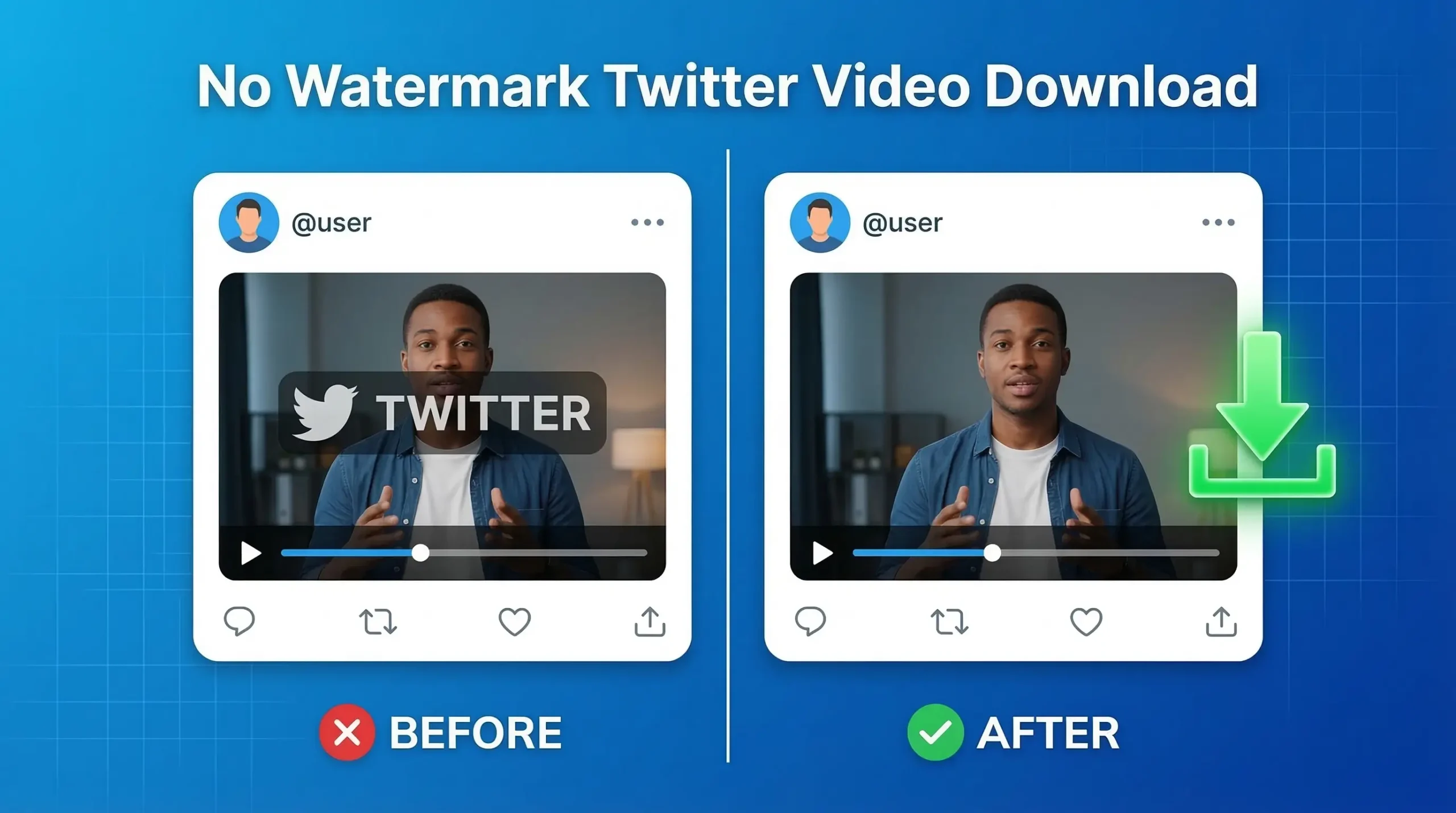
This guide explains how to download Twitter videos without watermark using simple methods that work on mobile phones, tablets, and desktop computers.
Try this: Twitter GIF Downloader
You will also learn how Twitter video downloading works, how to avoid common mistakes, and how to save videos in the best possible quality.
Why People Want to Download Twitter Videos Without Watermark?
Many users prefer to download Twitter videos without watermark for practical reasons. Watermarks are often added by third party tools, not by Twitter itself.
Here are some common reasons people want clean videos without branding.
Better Video Quality
Watermarks often cover part of the video. This can hide details or distract from the content.
Downloading the original video without watermark keeps the content clear.
Easier Sharing
If you want to share the video with friends or in messaging apps, a watermark can look unprofessional or annoying.
A clean video file is easier to reuse.
Content Research
Journalists, bloggers, and researchers often save Twitter videos as references. A watermark can interfere with screenshots or clips used in research.
Personal Collections
Some users save Twitter videos for inspiration or learning. Removing watermarks helps keep the media library organized and clean.
Presentations and Documentation
Videos used for presentations or documentation often need to remain unaltered.
For these reasons, many users search for twitter video downloader without watermark tools.
How Twitter Video Downloading Works
Before learning how to download Twitter videos without watermark, it helps to understand how Twitter stores video files.
When someone uploads a video to Twitter, the platform processes it and stores it on Twitter’s servers. The tweet itself only contains a reference to the video file.
When you watch the video on Twitter, your device streams it from those servers.
Download tools simply extract the video file from the tweet link.
The basic process usually works like this:
- A user copies the tweet URL
- The downloader analyzes the tweet
- The tool retrieves the video source file
- The video becomes available for download
Because the video already exists on Twitter’s servers, the downloader is not creating the video. It is only retrieving the file.
The watermark appears only when a tool adds its own branding during the download process.
Reliable tools simply extract the original video file without modifying it.
Step-by-Step Guide to Download Twitter Videos Without Watermark
The easiest way to download Twitter videos online is by using a web based downloader.
These tools work directly in your browser and do not require installation.
Below is a simple step by step process that works on both mobile and desktop devices.
Step 1: Find the Tweet Containing the Video
Open Twitter or X (or Simply go to https://x.com/home) and locate the tweet that contains the video you want to download.

Make sure the tweet is public. Private tweets cannot usually be accessed by download tools.
Step 2: Copy the Tweet Link
Under the tweet, click or tap the Share icon.
Then select Copy link to tweet.
This copies the tweet URL to your clipboard.
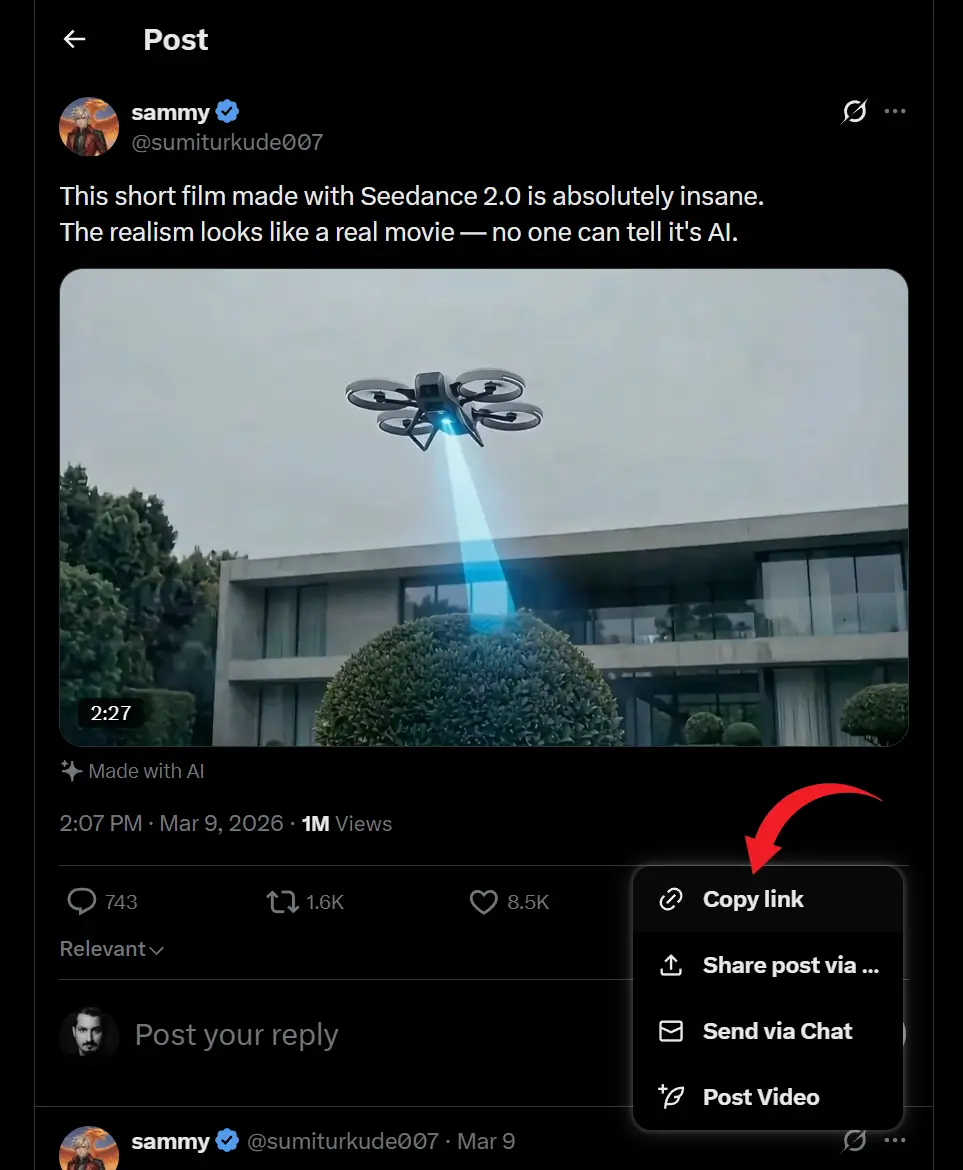
The link will look similar to this:
https://x.com/sumiturkude007/status/2030933543443193908
Step 3: Open a Twitter Video Downloader
Next, open a reliable twitter video downloader without watermark.
Many web based tools can process tweet links.
For example, In my case i will try tweeterdownloader.com which allow users to paste a tweet link and extract the video without adding branding.

Step 4: Paste the Tweet Link
Paste the copied tweet URL into the tweeterdownloader’s input box.
Then click the Download or Fetch Video button.
The tool will analyze the tweet and detect the available video.

Step 5: Choose Video Quality
Many download tools provide several quality options.
Common formats include:
- HD video (1080p Full HD Quality) (Support Upto 4K Quality)
- Standard quality video (720p HD Quality)
- Mobile optimized versions (360p and 270p Low resolutions for low end mobile devices)
Choose the quality you prefer.
Step 6: Download the Video
Click the download button next to the desired quality.
The video will begin downloading to your device.
Depending on your browser settings, it will be saved in your Downloads folder or phone gallery.
This method allows you to save Twitter videos without watermark quickly and safely.
Tips for Getting the Best Quality Videos
When downloading Twitter videos, a few simple tips can help you get the best results.
Choose the Highest Resolution Available
Many tools offer multiple quality options.
Selecting the highest resolution ensures better clarity.
Use Reliable Download Tools
Some downloaders compress videos or add watermarks.
Look for tools that retrieve the original video file.
Check Internet Connection
A slow internet connection may interrupt downloads or reduce playback quality.
Stable internet helps download videos smoothly.
Avoid Re-uploaded Content
Videos that have been re-uploaded multiple times may already be compressed.
If possible, download from the original tweet.
Download From the Original Source
Sometimes the same video appears in several tweets.
Downloading from the original tweet usually provides better quality.
Why Some Tools Add Watermarks
Many users wonder why some downloaders place watermarks on videos.
The main reason is branding.
Some websites add watermarks to promote their services whenever someone shares the downloaded video.
This acts as free advertising.
There are also other reasons.
Brand Visibility
Adding a watermark ensures that the downloader’s name appears whenever the video is shared.
Traffic Generation
If a watermark includes a website name, viewers may visit that site.
Content Tracking
Some tools use watermarks to track how often downloaded videos are shared.
Monetization
Watermarks can help companies increase recognition and attract more users.
However, many users prefer tools that provide clean downloads without watermark.
Common Mistakes Users Make
People trying to download Twitter videos without watermark sometimes run into problems.
Here are some common mistakes to avoid.
Using Untrusted Downloaders
Some sites may include intrusive ads or modify the video.
Always use reliable tools.
Copying the Wrong Link
Sometimes users copy the profile URL instead of the tweet link.
Make sure you copy the link to the specific tweet containing the video.
Trying to Download Private Tweets
Downloaders usually cannot access tweets from private accounts.
Ignoring Video Quality Options
Many users download the first available version instead of selecting the best quality.
Using Unsupported Browsers
Older browsers may not support modern video downloads.
Using updated browsers improves compatibility.
Frequently Asked Questions
Downloading videos for personal use is generally acceptable. However, the video creator still owns the content. If you plan to reuse the video publicly, always respect copyright and provide credit when necessary.
Yes. Most web based downloaders work on Android phones, iPhones, and tablets. The process is the same as on desktop devices.
No. Many tools allow you to download Twitter videos online directly from your browser without installing software.
This may happen if the tweet is private, deleted, or restricted. Downloaders can only access publicly available tweets.
Final Thoughts:
Learning how to download Twitter videos without watermark is simple once you understand the process.
The key steps include copying the tweet link, using a reliable downloader, and choosing the best available video quality.
Watermarks are usually added by third party tools rather than Twitter itself. By using trusted downloaders, you can retrieve clean videos without extra branding.
Whether you want to save videos for offline viewing, research, or sharing with friends, downloading Twitter videos can be quick and convenient when done correctly.
With the right approach and tools, you can easily save Twitter videos without watermark on mobile devices, tablets, or desktop computers.