X.com (formally known as Twitter.com) doesn’t give you a download button. And that’s honestly frustrating.
No stress, I’ll show you – saving Twitter videos on Android is super easy. Way easier than on iPhone, in fact. Android gives you more flexibility, and with the right method, the whole thing takes less than a minute.
In this guide, I will walk you through 4 working methods to download Twitter videos on any Android phone – Samsung, Xiaomi, OnePlus, Realme, whatever you have. No jailbreak. No shady apps. Just simple steps.
Are you iPhone user?: Then Try our Twitter Video Saving Guide for iPhone
Why Can’t You Save Twitter Videos Directly?
Twitter (now officially called X) doesn’t include a download button for videos. That’s a platform decision, they want you to stay on the app, not save content and leave.
The video itself is stored on Twitter’s servers in a standard MP4 format. It’s not hidden or locked. You just need the right tool to grab it.
That’s exactly what the methods below do. They find the video file that Twitter is already streaming to your phone and let you save it.
No hacking. No sketchy tricks. Just smart downloading.
Method 1: Use TweeterDownloader.com (Easiest & Works on Every Android)
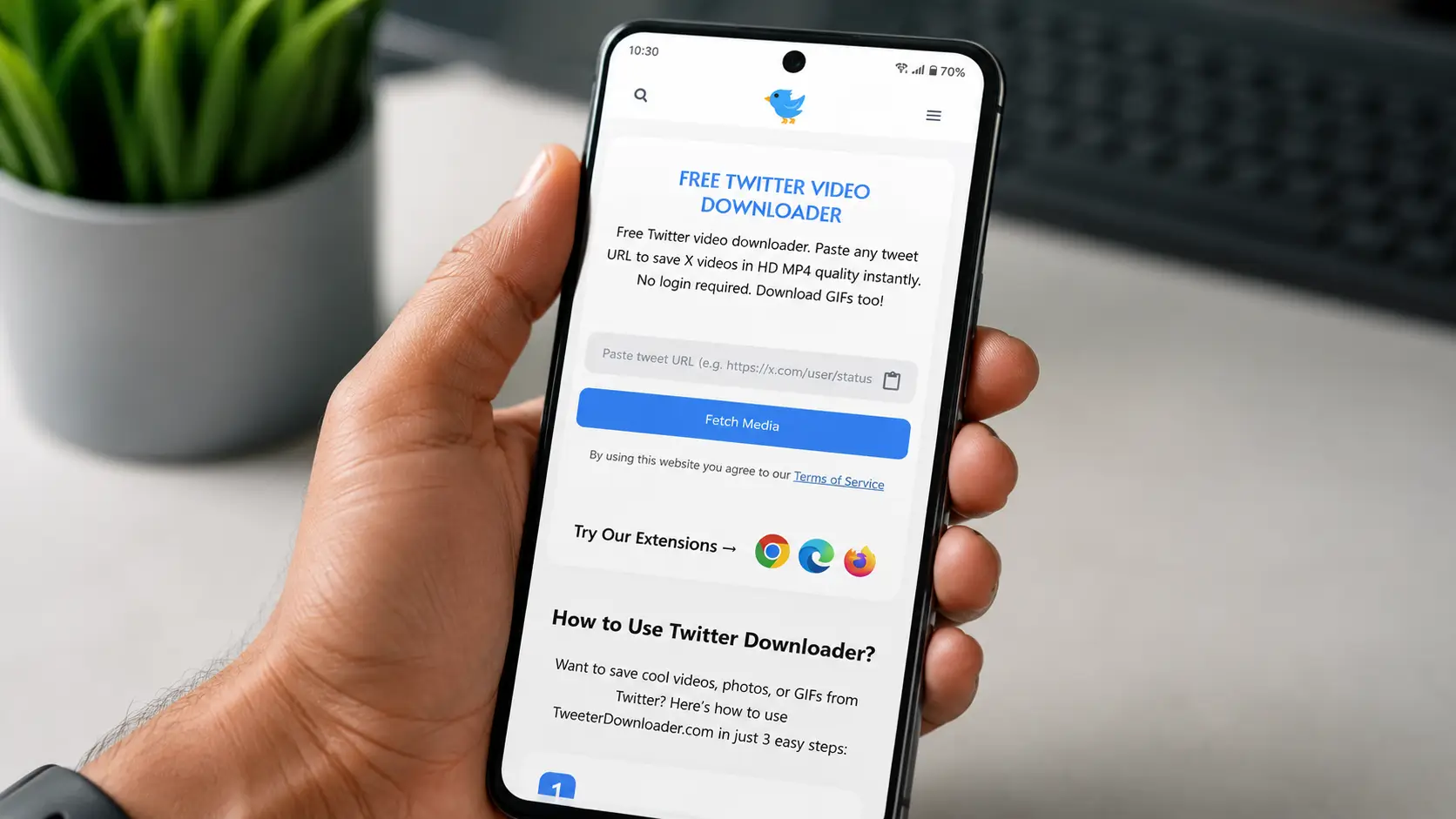
This is the method I recommend to everyone. It works on every Android phone, every version of Android, and every browser. You don’t need to install anything.
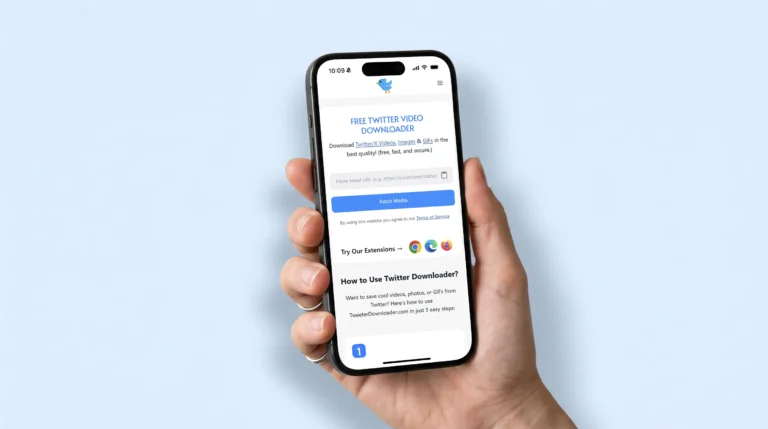
TweeterDownloader.com is a free web tool. You paste a tweet link, click a button, and download the video. That’s literally it.
Step 1: Copy the Tweet Link
Open the Twitter app or go to x.com in your browser.
Find the video you want to download.
Tap the Share icon (the upward arrow at the bottom of the tweet). Then tap “Copy link”.
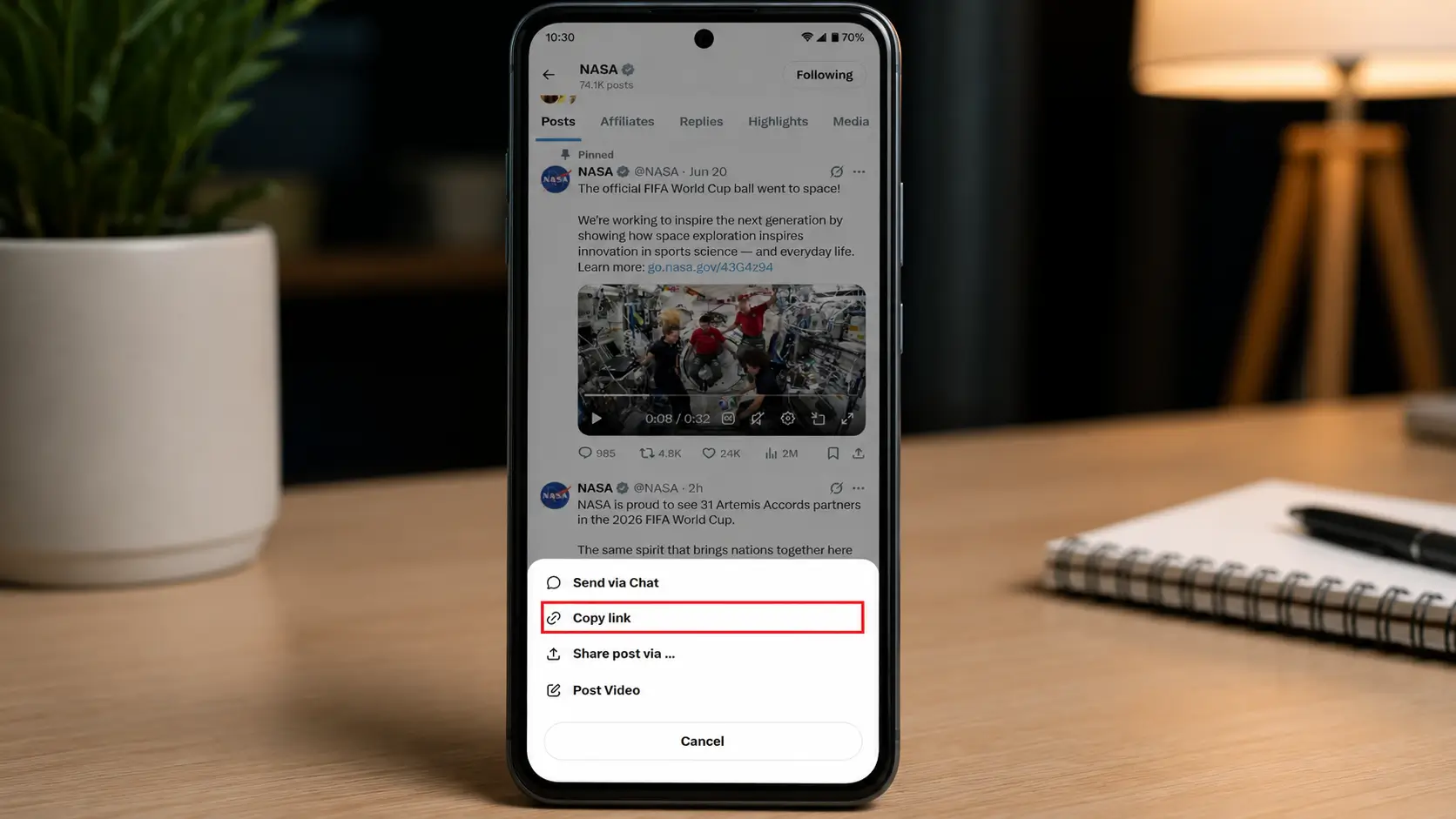
The link should look like this:
https://x.com/username/status/1234567890
If you’re using the Twitter mobile app, the “Share” button is the arrow icon right below the tweet, next to the Like and Retweet buttons.
Step 2: Open TweeterDownloader in Chrome
Open Chrome (or any browser) on your Android.
Go to:
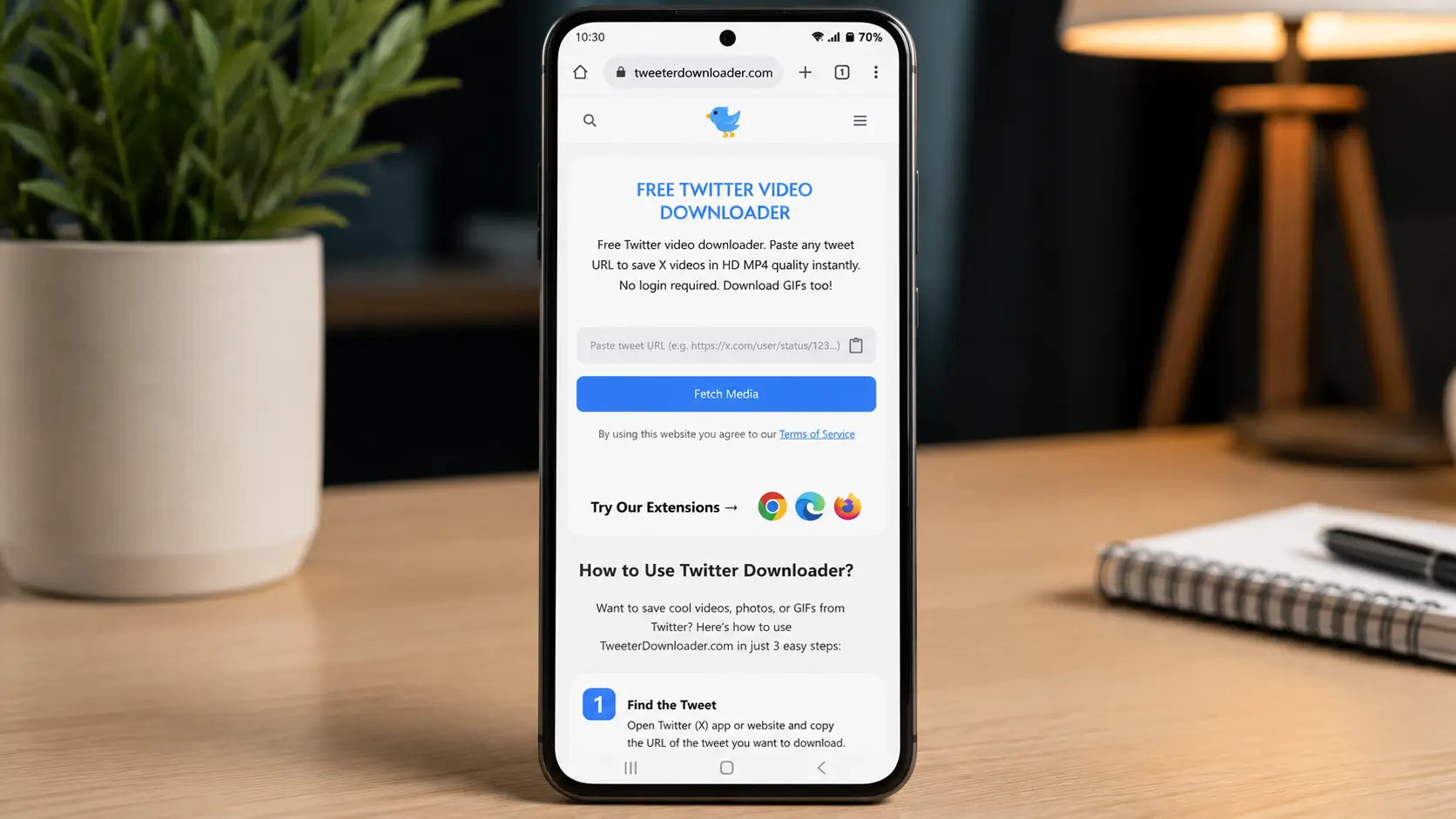
The page loads fast. You’ll see a simple input box right in the center.
Step 3: Paste the Link and Tap “Fetch Media”
Tap inside the input box. Paste the tweet link you just copied.
Then tap the “Fetch Media” button.
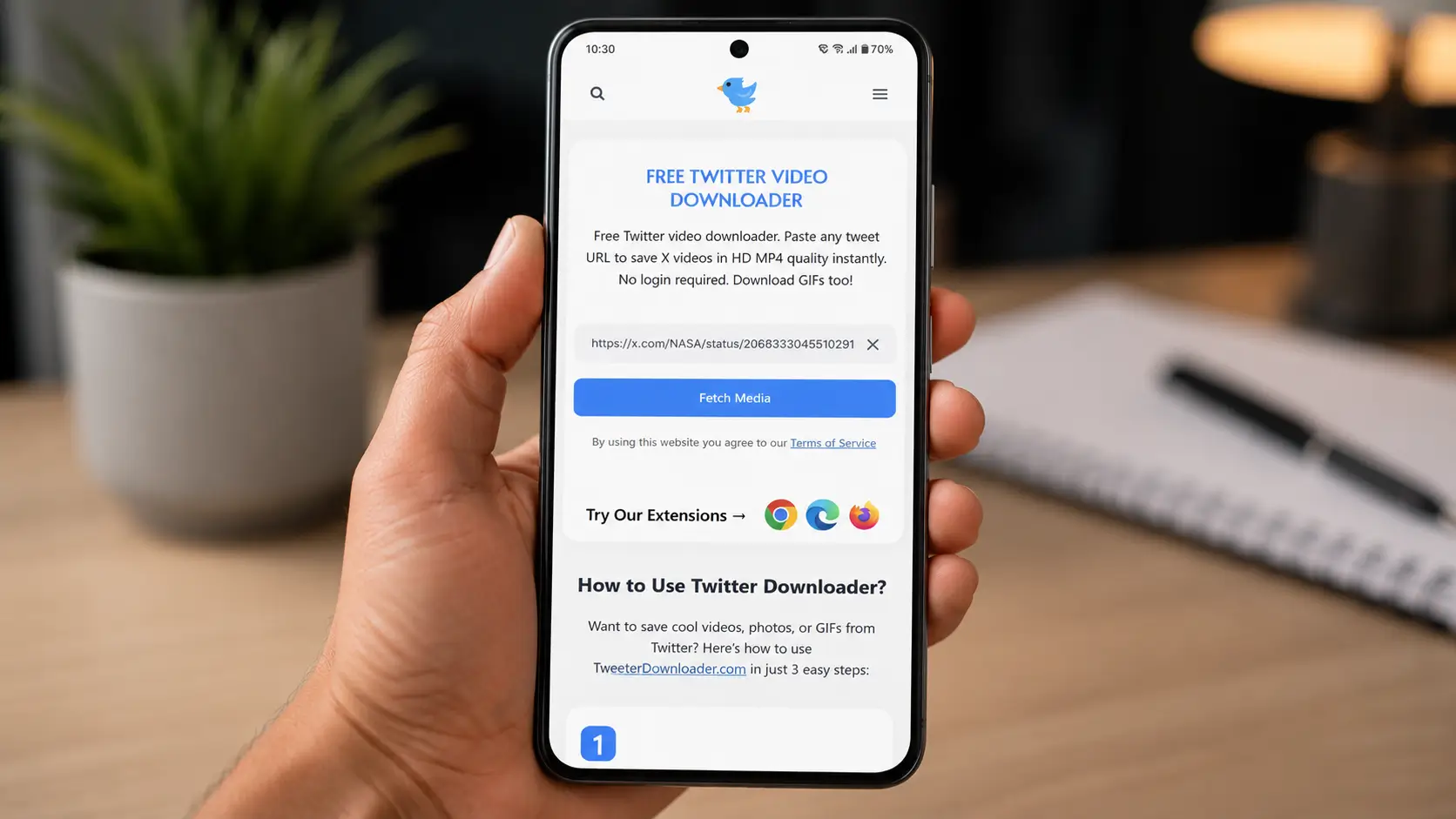
Wait 5–10 seconds while the tool finds the video.
Step 4: Choose Quality and Download
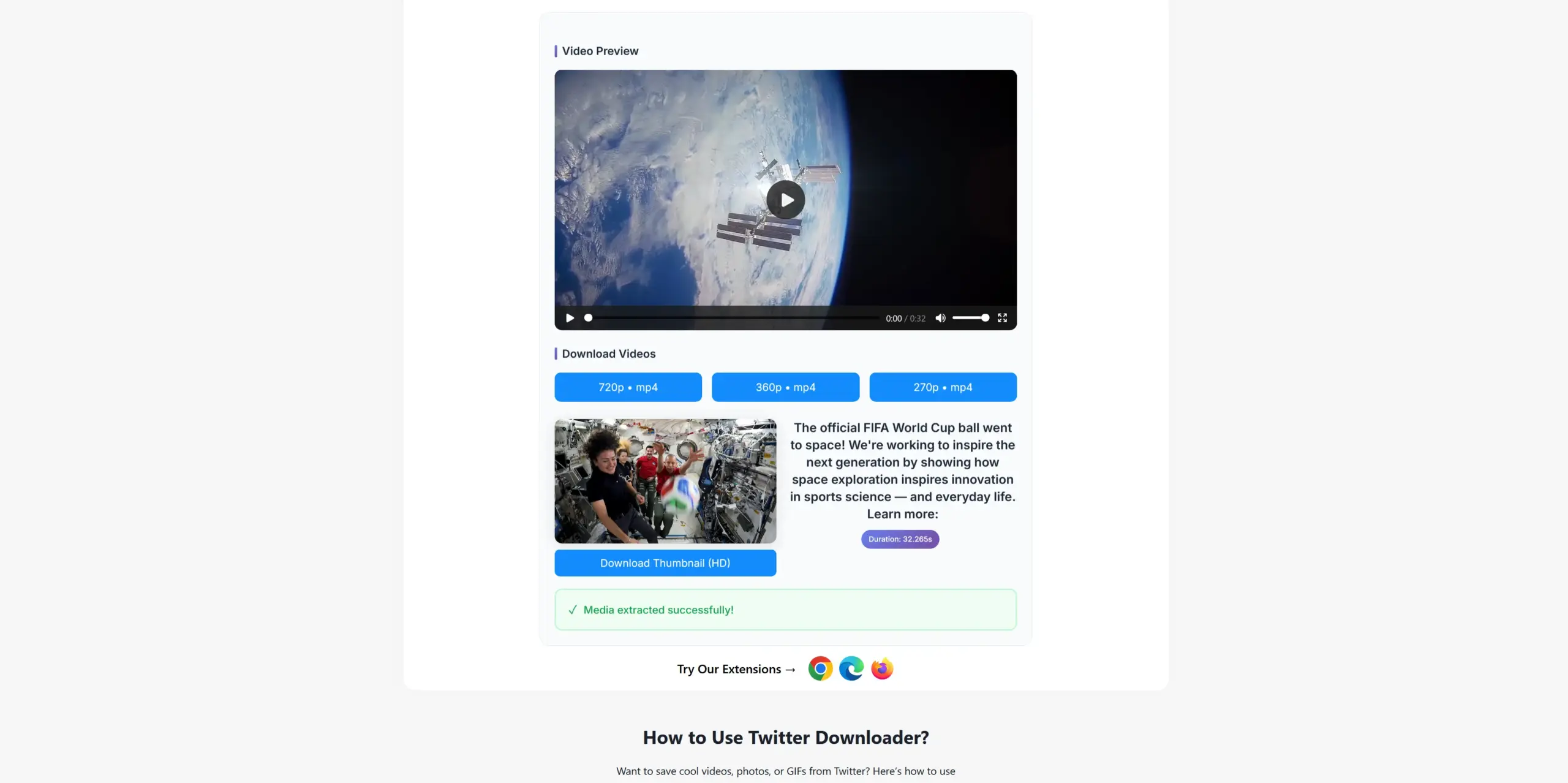
Once the video appears, you’ll see quality options – usually 360p, 720p, and 1080p.
Tap the quality you want. On Android, Chrome will download the file automatically.
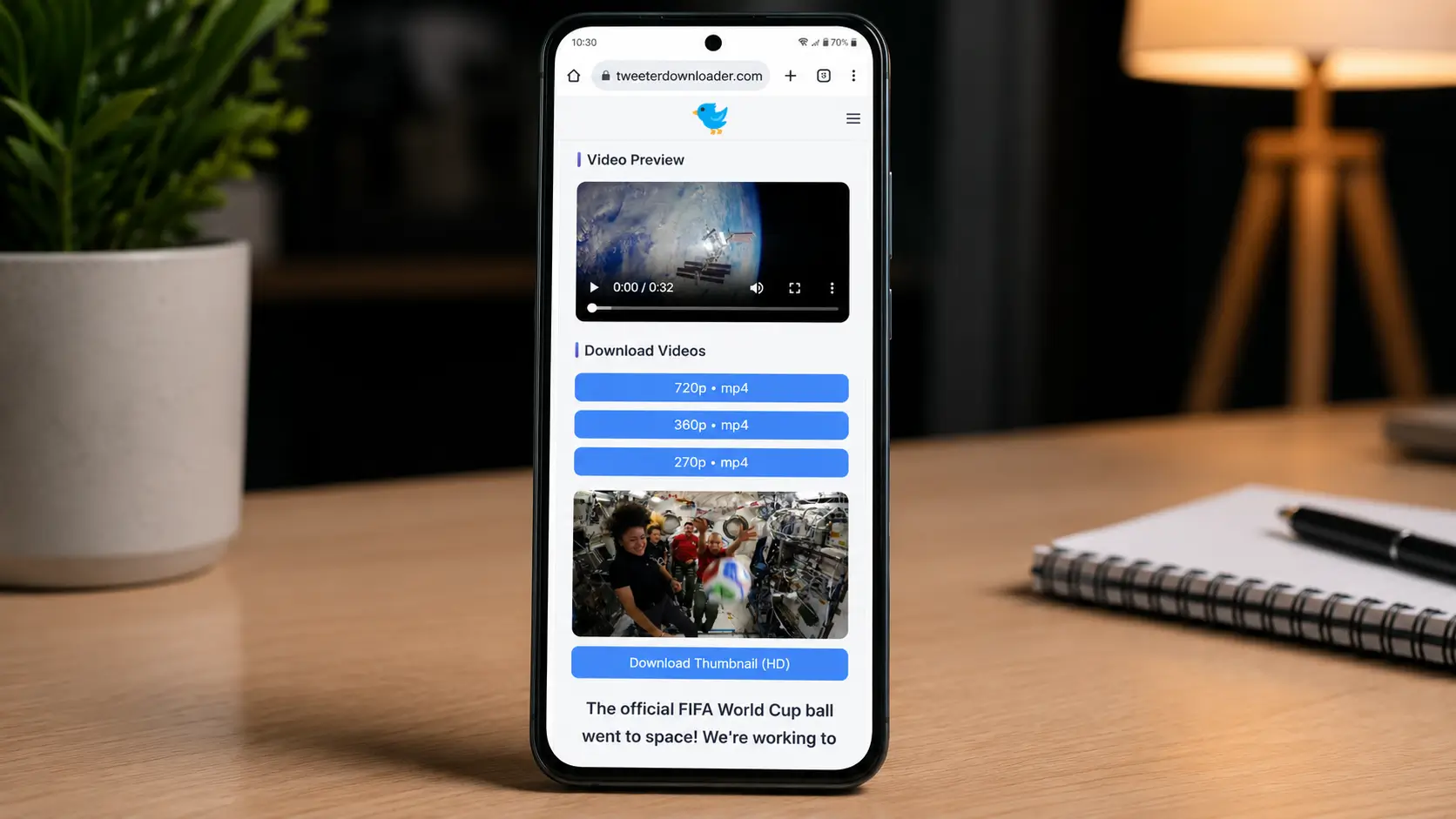
Where does it save? The video goes straight to your Downloads folder, which you can find in:
- Your phone’s Files app → Downloads
- Or in the Gallery app (on Samsung and most Android phones, videos in Downloads show up in Gallery automatically)
That’s it! Done in under a minute. 🎉
Method 2: The Chrome “Download” Trick (No Extra Site Needed)
This method works great on Android because Chrome on Android has a built-in download manager that’s more capable than Safari on iPhone.
When you open TweeterDownloader and the video appears:
- Tap and hold the Download button
- A menu appears, tap “Download link”
- Chrome downloads the file directly to your Downloads folder
This is basically the same as Method 1 but uses Chrome’s built-in downloader instead of the site’s button. It’s useful if the regular download button seems slow or unresponsive.
Pro tip for Samsung users: On Samsung phones, downloaded videos sometimes appear in My Files → Downloads before they show in Gallery. If you can’t find the video in Gallery, check My Files first.
Method 3: Use the TweeterDownloader Browser Extension
If you download Twitter videos regularly, this method will save you a ton of time.
Our browser extension adds a Download button directly to every tweet on Twitter. You don’t need to copy links or visit any website. Just tap “Download” right there on the tweet.
On Android, you can install browser extensions in Firefox:
Steps:
1. Download Firefox for Android from the Google Play Store (it’s free).
2. Open Firefox and go to: https://addons.mozilla.org/en-US/firefox/addon/tweeterdownloader/
3. Tap “Add to Firefox” → Confirm.
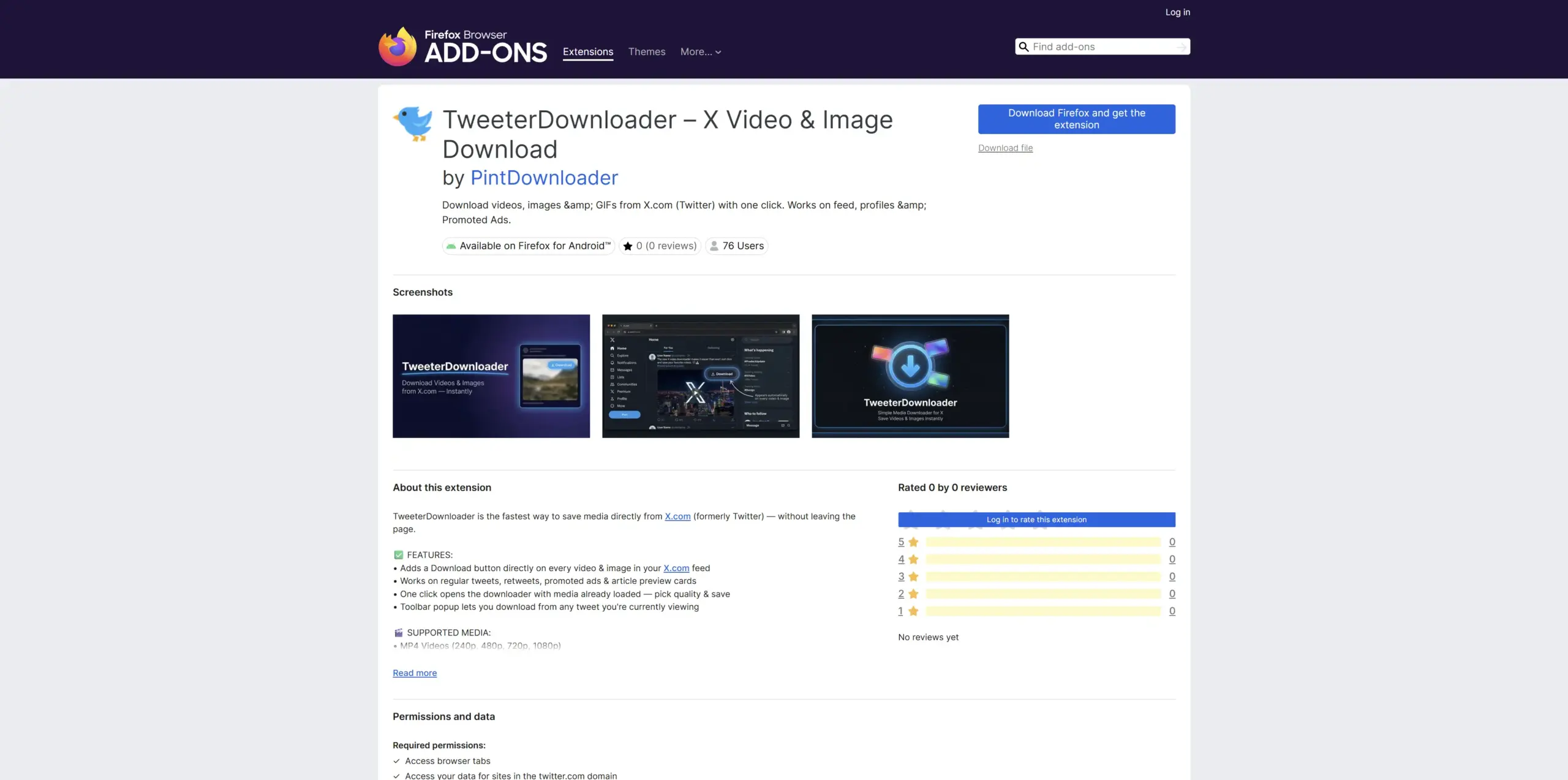
4. Now open Twitter in Firefox. You’ll see a Download button appear under every video tweet automatically.
5. Tap Download → Choose quality → Done.
Why Firefox for extension support? Chrome on Android currently doesn’t support extensions. Firefox is the best Android browser for extensions and it works great with Twitter too.
Method 4: Screen Record (Use This Only as a Last Resort)
I’ll be honest with you, screen recording is not a great way to save Twitter videos. The quality is lower because you’re recording your screen instead of downloading the actual file. The file size is bigger. And you’ll capture everything on screen — notifications, the Twitter UI, the video controls.
But sometimes it’s the only option, like if a video is giving errors on the downloader, or it’s a Twitter Space or live stream.
Here’s how to screen record on Android:
All Android phones (Android 10 and newer) have built-in screen recording:
- Swipe down from the top of your screen to open the notification shade
- Swipe down again to see all quick settings tiles
- Find “Screen Recorder” — tap it
- A 3-second countdown starts
- Go to the tweet and play the video
- When done, tap the red dot in the notification bar to stop
- The recording saves to your Gallery
If you don’t see Screen Recorder: Some phones hide it. Go to Settings → search “Screen Recorder” or check your phone’s quick settings edit options.
Tips for better quality: Turn Do Not Disturb on first. Make sure your Twitter video is set to highest quality before recording (tap the tweet, tap the three dots, and check video quality settings).
Which Method is Best for Your Phone?
Different situations call for different methods. Here’s a simple table to help you decide:
| Method | Best For | Video Quality | Speed | Difficulty |
|---|---|---|---|---|
| TweeterDownloader.com | Everyone — daily use | ✅ Upto 2k | ⚡ Fast | ⭐ Very Easy |
| Chrome Download Trick | When button is slow | ✅ Upto 2k | ⚡ Fast | ⭐ Very Easy |
| Firefox Extension | Frequent downloaders | ✅ Upto 2k | ⚡ Fastest | ⭐ Very Easy |
| Screen Record | Live streams / errors | ⚠️ Lower | 🔄 Slow | ⚠️ Difficult Somtimes |
My recommendation: Use TweeterDownloader.com for casual downloading. If you download Twitter videos every day, install the Firefox extension — it saves you the most time.
Phone-Specific Tips
Different Android brands handle downloads slightly differently. Here’s what you need to know:
Samsung Galaxy Users
- Downloads go to My Files → Downloads
- Videos also appear in Gallery → Albums → Downloads
- Samsung Internet browser also works great with TweeterDownloader
Xiaomi / Redmi / POCO Users
- Downloads go to File Manager → Downloads
- Videos appear in Gallery → Videos
- MIUI sometimes shows a “Restricted” browser warning, just tap “Continue” or use Chrome instead
OnePlus / Oppo / Realme Users
- Downloads go to Files → Downloads
- Videos appear in Gallery automatically
- ColorOS and OxygenOS both work perfectly with Chrome + TweeterDownloader
Google Pixel Users
- Smoothest experience — Chrome on Pixel downloads files perfectly
- Videos go to Files by Google → Downloads
- Also appear in Google Photos if you have Photos set to back up from Downloads
Where Do Downloaded Videos Go on Android?
This is probably the most common question “I downloaded the video but where is it?”
On Android, downloaded files go to your Downloads folder by default. You can find it in a few places:
Option 1: Files App Open your phone’s Files app (called “My Files” on Samsung, “File Manager” on Xiaomi, “Files by Google” on Pixel). Look for a Downloads folder.
Option 2: Gallery App Most Android phones automatically show downloaded videos in the Gallery app under an album called “Downloads” or “Download”.
Option 3: Chrome Downloads If you used Chrome, tap the three dots menu (⋮) → Downloads. All your recent Chrome downloads appear here.
Can’t find it anywhere? Try this: Open Chrome → tap the three dots → Downloads. If it’s there, move it to your Gallery by tapping and holding the file → Share → Save to Gallery.
Can You Download Twitter Images and GIFs on Android Too?
Yes! TweeterDownloader handles all Twitter media, not just videos.
- For images: Use our Twitter Image Downloader, paste the tweet link, download the photo in original quality. Works the same way.
- For GIFs: Use our Twitter GIF Downloader, GIFs are saved as MP4 files (that’s how Twitter stores them) and play automatically on any Android phone.
Same process, same tool – just different media types.
Frequently Asked Questions
Yes, completely safe. TweeterDownloader doesn’t ask you to log in, doesn’t need your Twitter password, and doesn’t install anything on your phone. You just paste a link in a website. The video is fetched from Twitter’s own servers and delivered to you. No malware, no data collection.
On some Android phones, downloaded files go to the Downloads folder but don’t automatically appear in Gallery. Fix: Open your Gallery app → tap the three lines or album icon → look for “Downloads” album. Or open Files app → Downloads → tap the video → tap the three dots → “Move to Gallery” or “Save to Gallery.”
Yes. TweeterDownloader is a website, not an app. As long as your phone can run Chrome or Firefox, it works. We’ve tested it on Android 7 and above. The downloading process is the same regardless of your Android version.
This sometimes happens if you download a very low quality (360p) version. Try downloading the 720p or 1080p version instead. If the problem continues, the original tweet’s video might have been uploaded without audio — some Twitter video clips are naturally silent.
Twitter stores videos in different qualities depending on what the original uploader provided. If a video was uploaded in low resolution, only that quality will be available. We show you every quality that Twitter has stored — we can’t create quality that doesn’t exist.
Absolutely. Tablets run Android and have Chrome or Firefox, so they work perfectly. The website is fully responsive — it looks great on the bigger screen too.
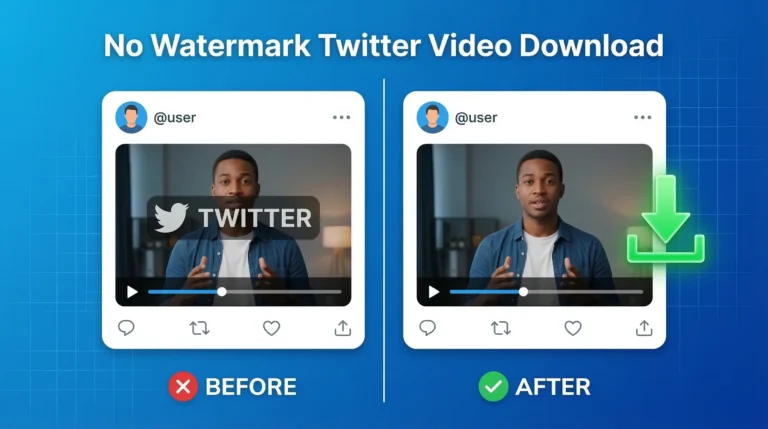
No. TweeterDownloader downloads the raw video file directly from Twitter’s servers. We don’t add any watermark, logo, or branding to the video. What you download is exactly what was uploaded to Twitter.
One More Thing – The Browser Extension
If you find yourself downloading Twitter videos every day, there’s an even faster way.
Our browser extension adds a Download button directly to every tweet. No copying links. No switching apps. Just tap Download right there on Twitter.
On Android, install it on Firefox (available on the Play Store). Search for our extension in Firefox Add-ons and add it in seconds.
Final Thoughts
Downloading Twitter videos on Android is honestly one of the easiest things once you know how. No complicated steps. No registration. No apps to install.
The fastest way: Open TweeterDownloader → Paste your tweet link → Click Fetch Media → Download. Done.
Bookmark this page so you can always come back. And if this guide helped you, share it with a friend who’s been struggling with the same problem!